Accessing legal document settings
- Click Settings in the left-hand menu
- Under the Business section, click Legal
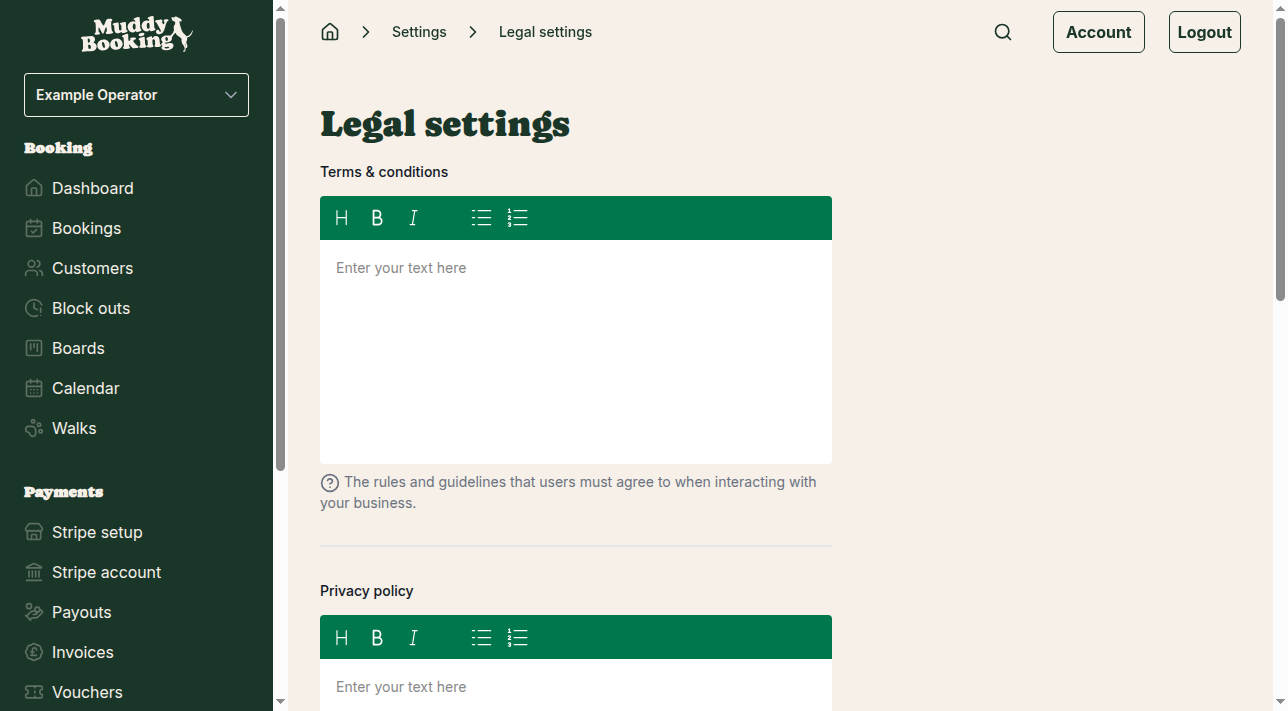
Setting up your legal documents
You can set up three documents here:
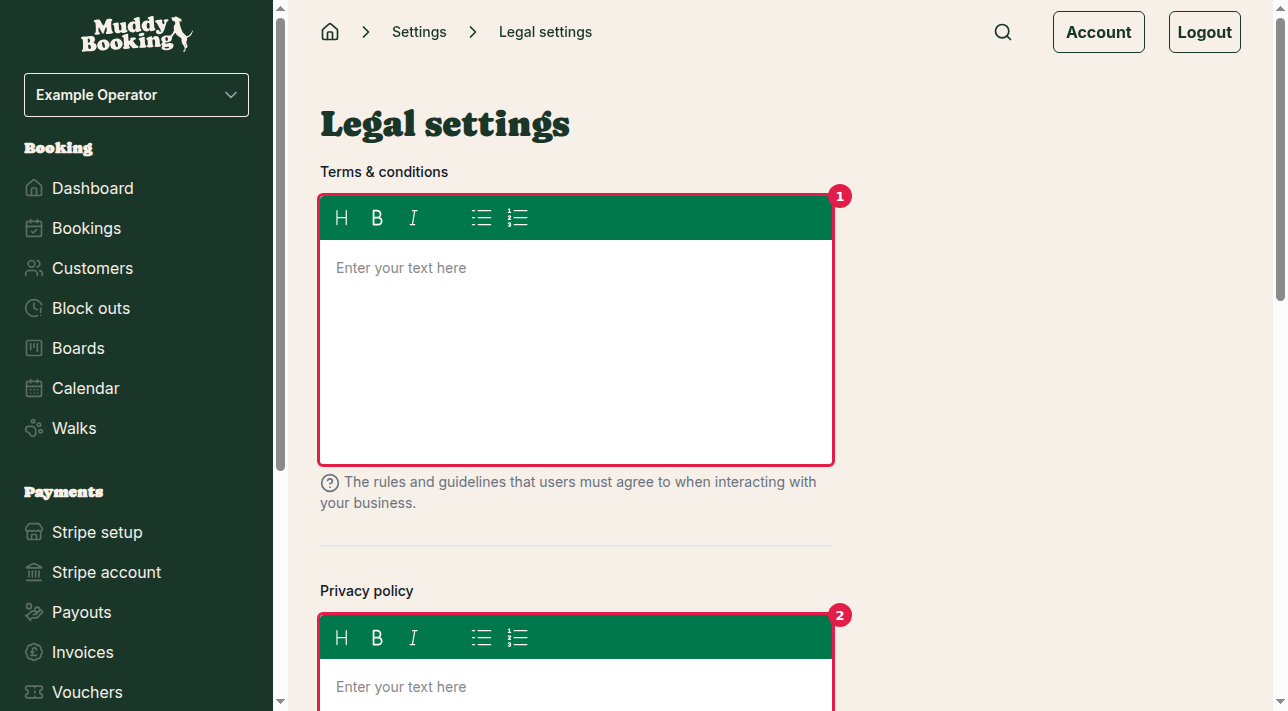
Terms and conditions (1)
The rules customers agree to when they use your services. Enter them in the text box. You might cover:
- What your service includes and doesn't include
- What you expect from customers
- Liability and insurance
- Payment terms
- Booking requirements
Privacy policy (2)
How you collect, use and protect customer data. Enter it in the text box. It should cover:
- What personal information you collect
- How you use it
- How you keep it safe
- Customers' rights over their data
- Who to contact with privacy questions
Cancellation policy
You can let Muddy write this for you, or write your own.
Automatic cancellation policy (3)
Switch on Automate cancellation policy and Muddy writes the policy from your cancellation rules, and keeps it up to date when you change them.

The text box is hidden while this is on.
Manual cancellation policy (4)
Switch off Automate cancellation policy to write your own in the text box. Cover:
- How much notice customers need to give
- Any fees
- Refunds
- Rescheduling
Requiring customer acceptance (5)
Switch on Require acceptance to make customers agree to the following before they can book:
- Your terms and conditions
- Your privacy policy
- Your cancellation policy
- Your banned breeds policy, if you have one
When it's off, customers can still read your policies but don't have to accept them.
Saving your changes
Click Save (6).
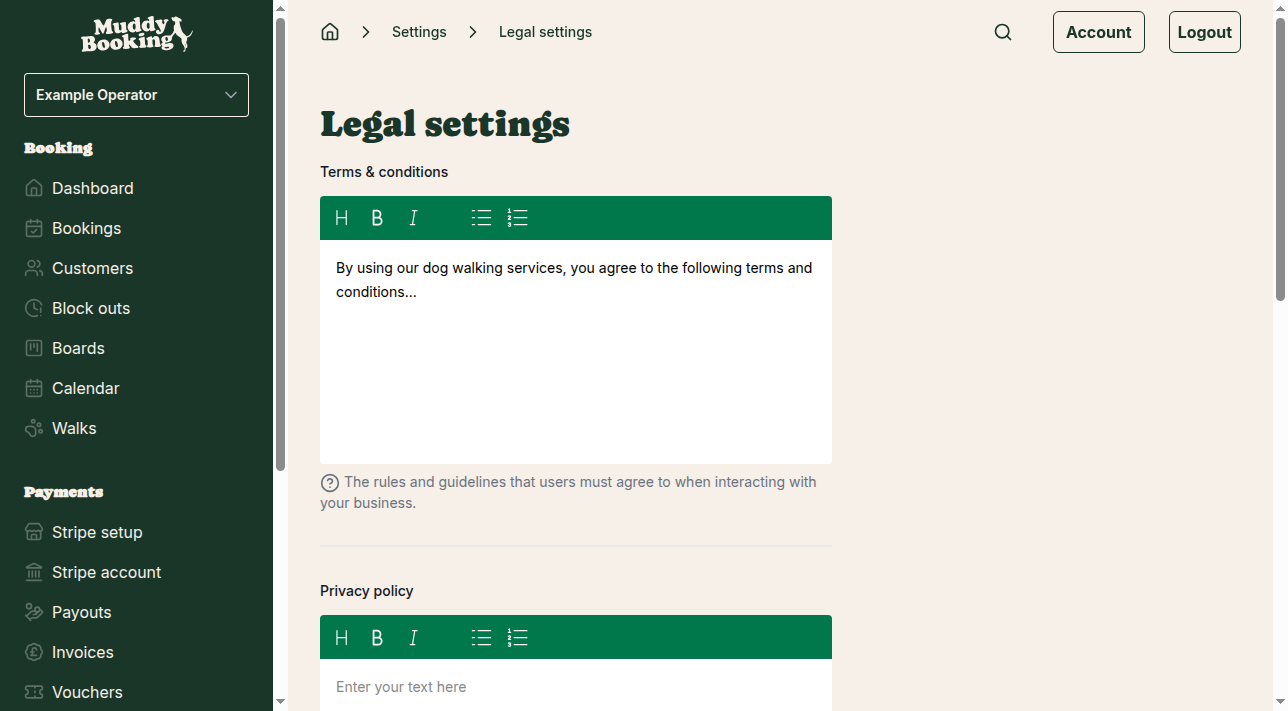
Important considerations
- Get professional advice: a solicitor can check your documents protect your business
- Keep them up to date: review them whenever your services or policies change
- Check what customers see: after saving, make a test booking to see how the documents are shown