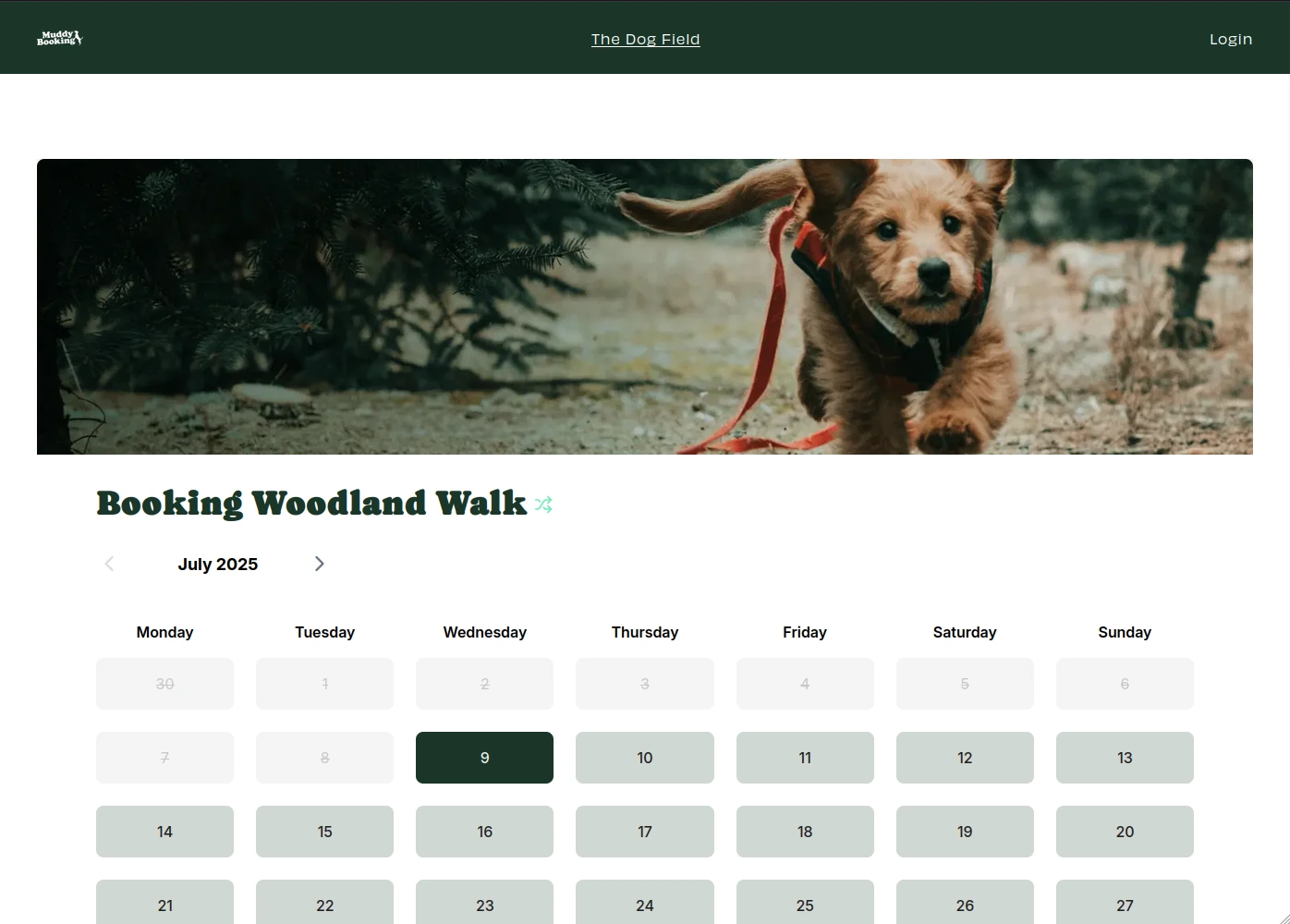
Finding your embed code
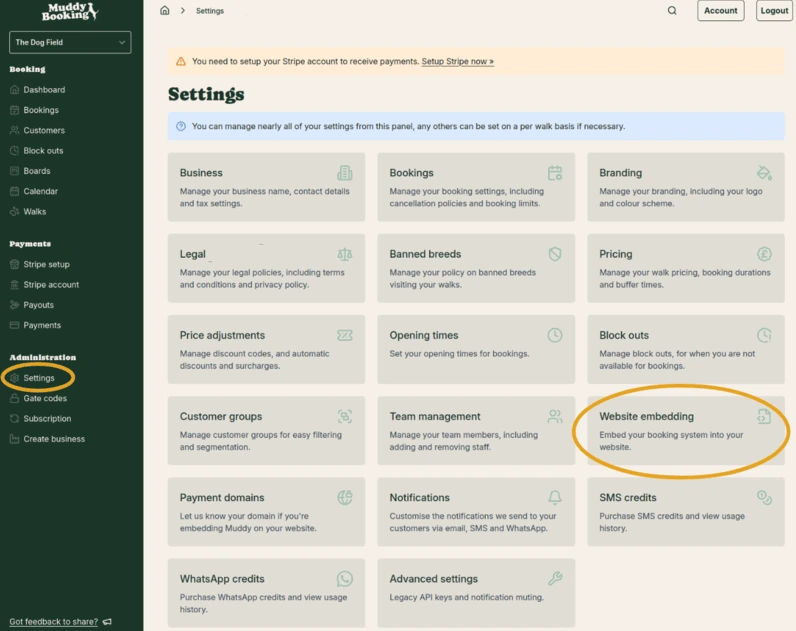
- In the Muddy admin area, click Settings in the left-hand menu, then click Website embedding
- Find the booking form you want to add to your site and click the green Copy HTML button next to it
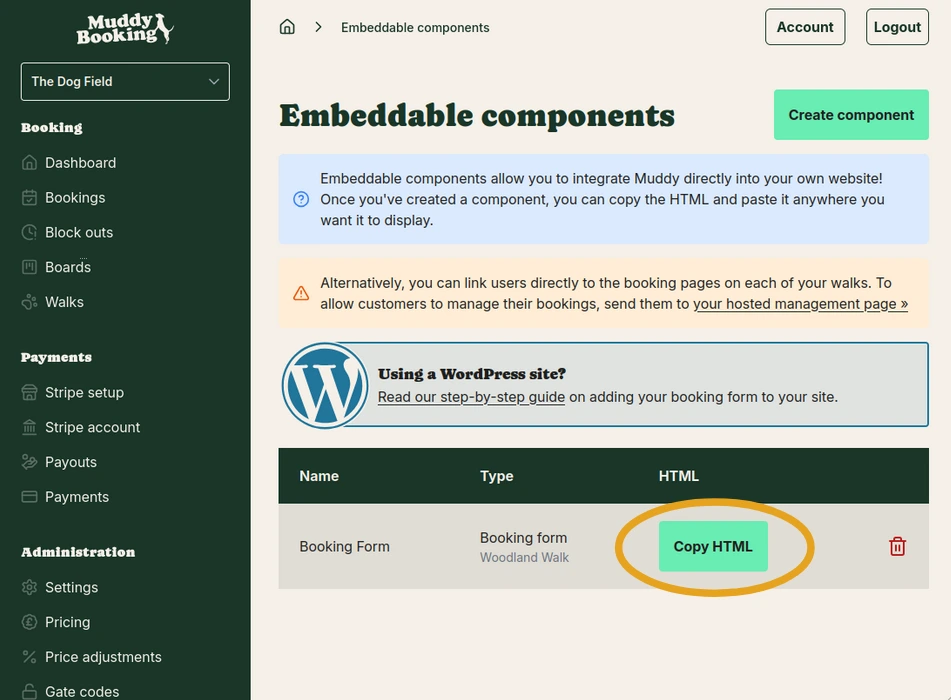
This copies the embed code to your clipboard, ready to paste into Squarespace.
Adding your shop rather than your booking form? Create a Shop component first, as explained in Adding your shop to your website. Then copy its code in the same way and follow the steps below.
Adding the form to your Squarespace page
Step 1: Open your page
Log into Squarespace and go to Pages. Open the page where you want the booking form to appear.
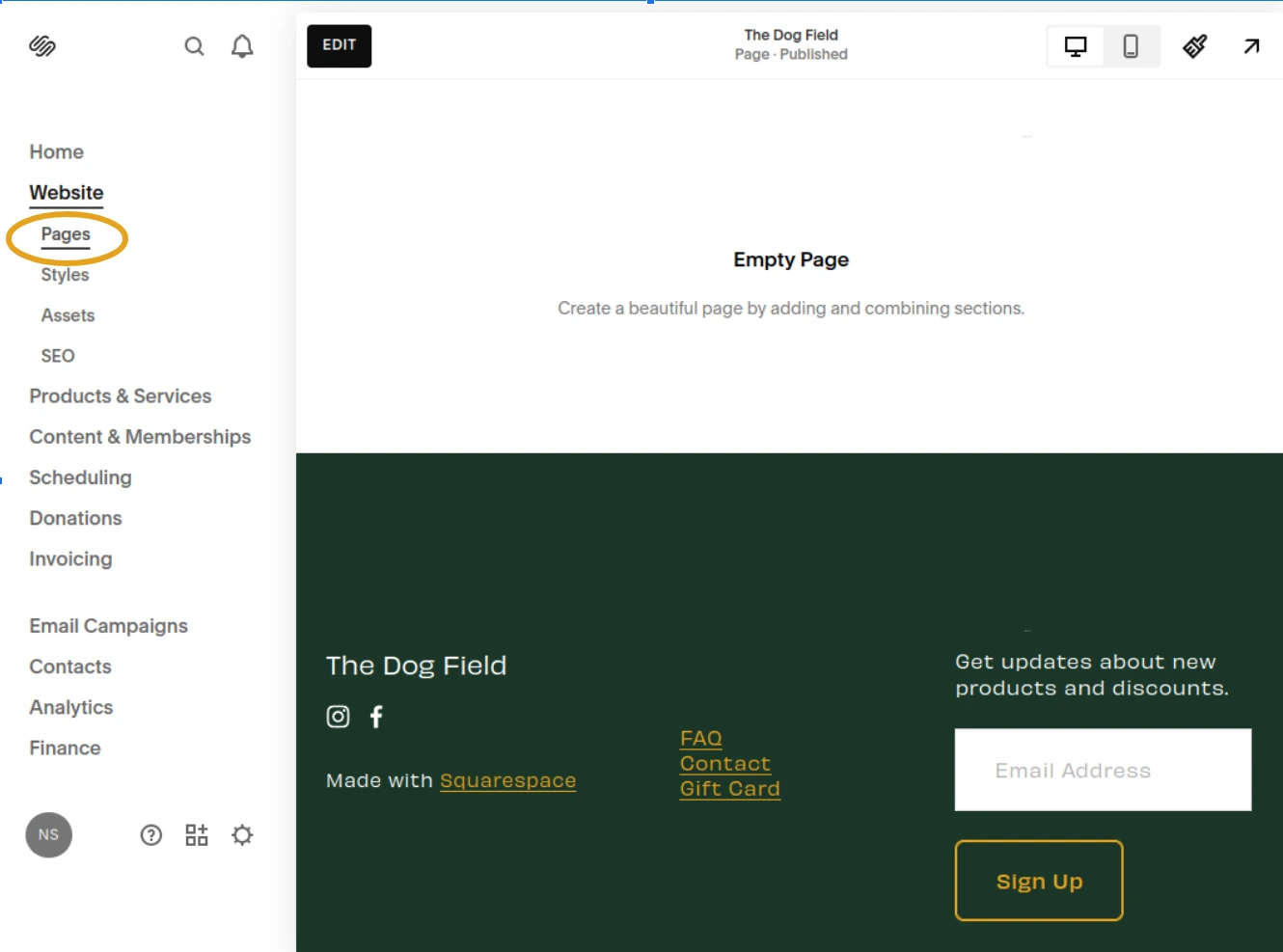
Step 2: Edit your page
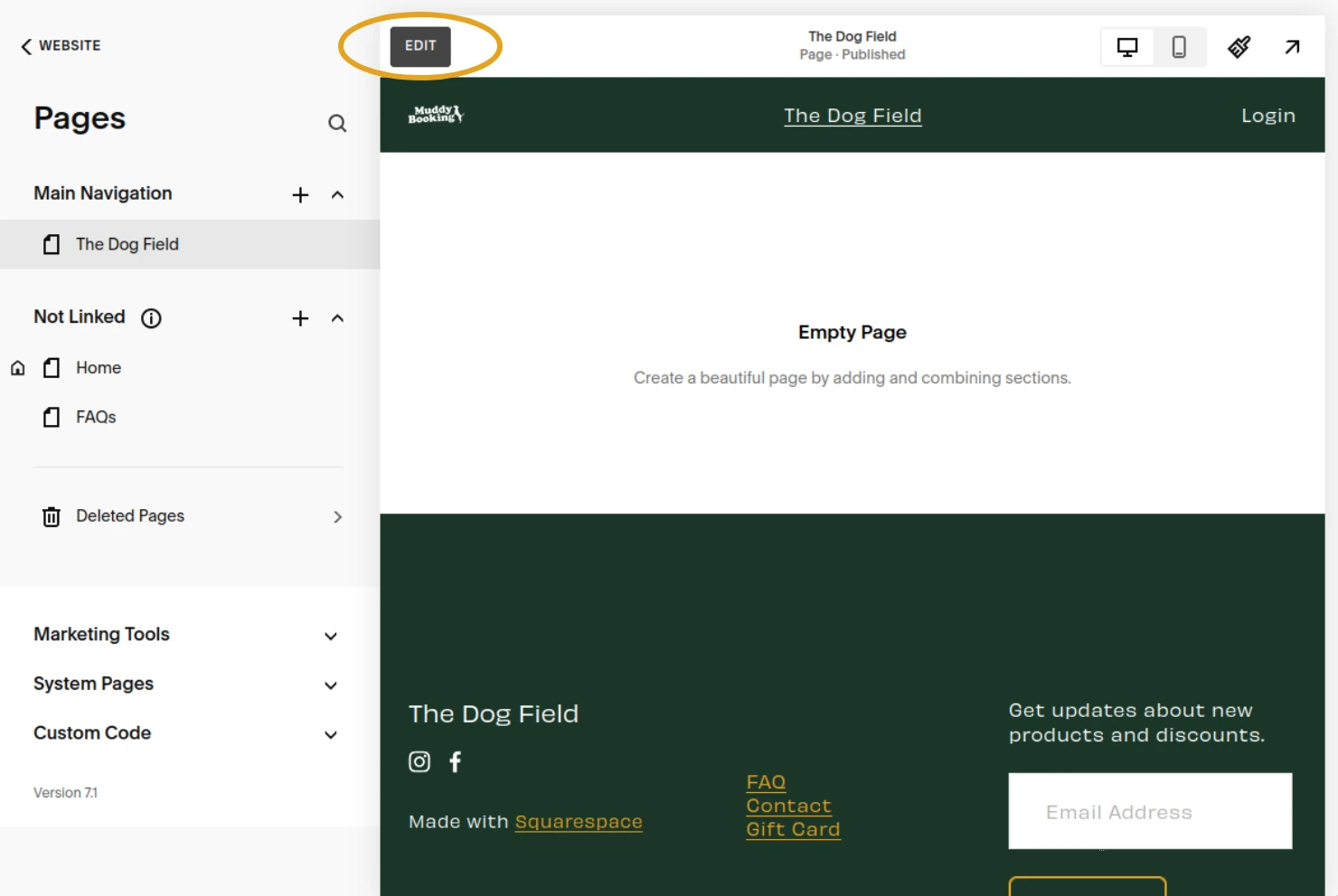
Click Edit to open the page editor.
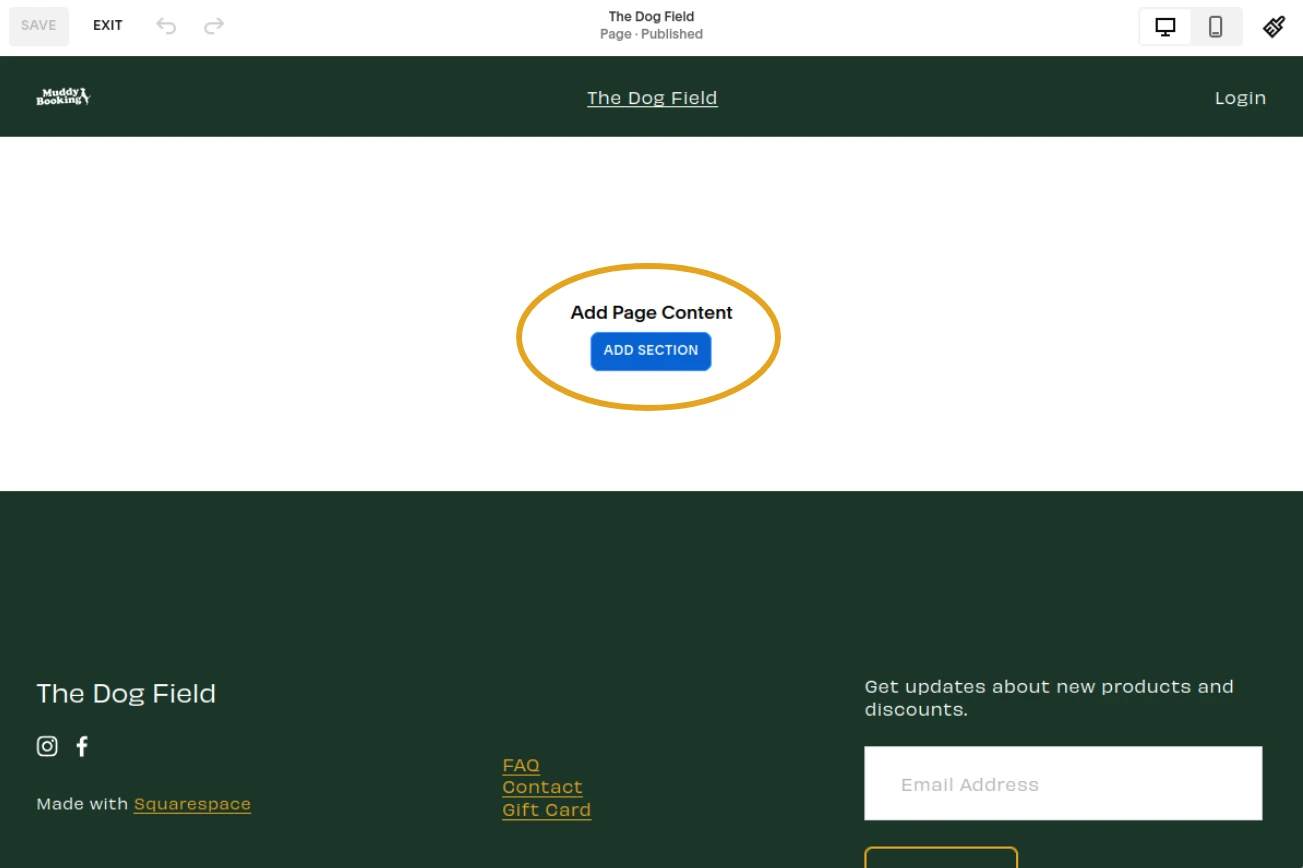
Step 3: Add a new section
Click to add a new section on your page.
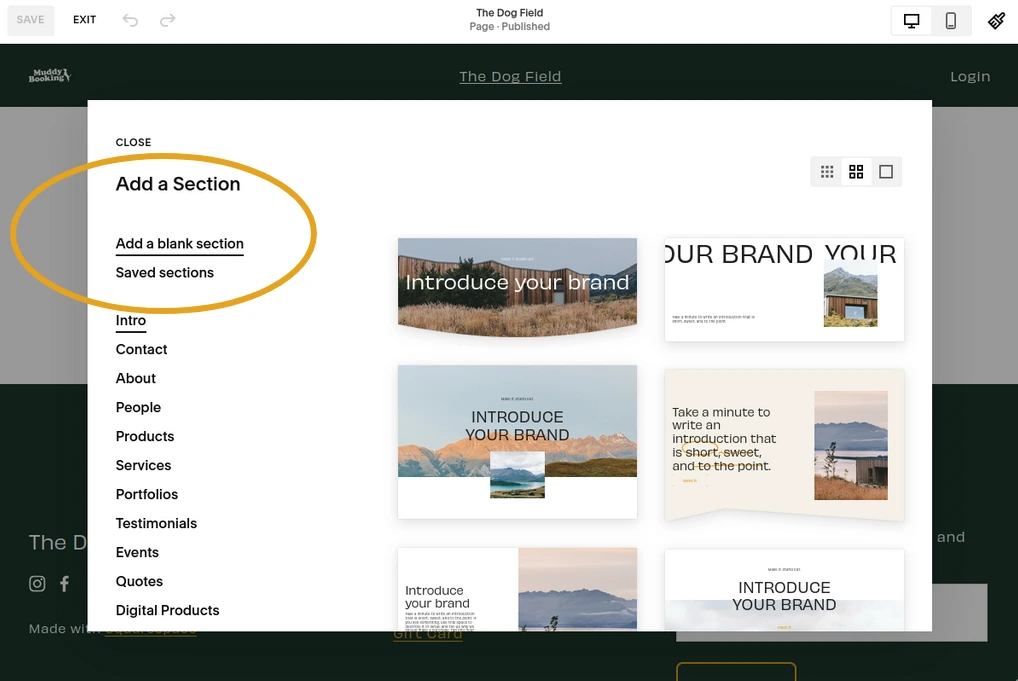
Choose a Blank section layout.
Step 4: Add an Embed block
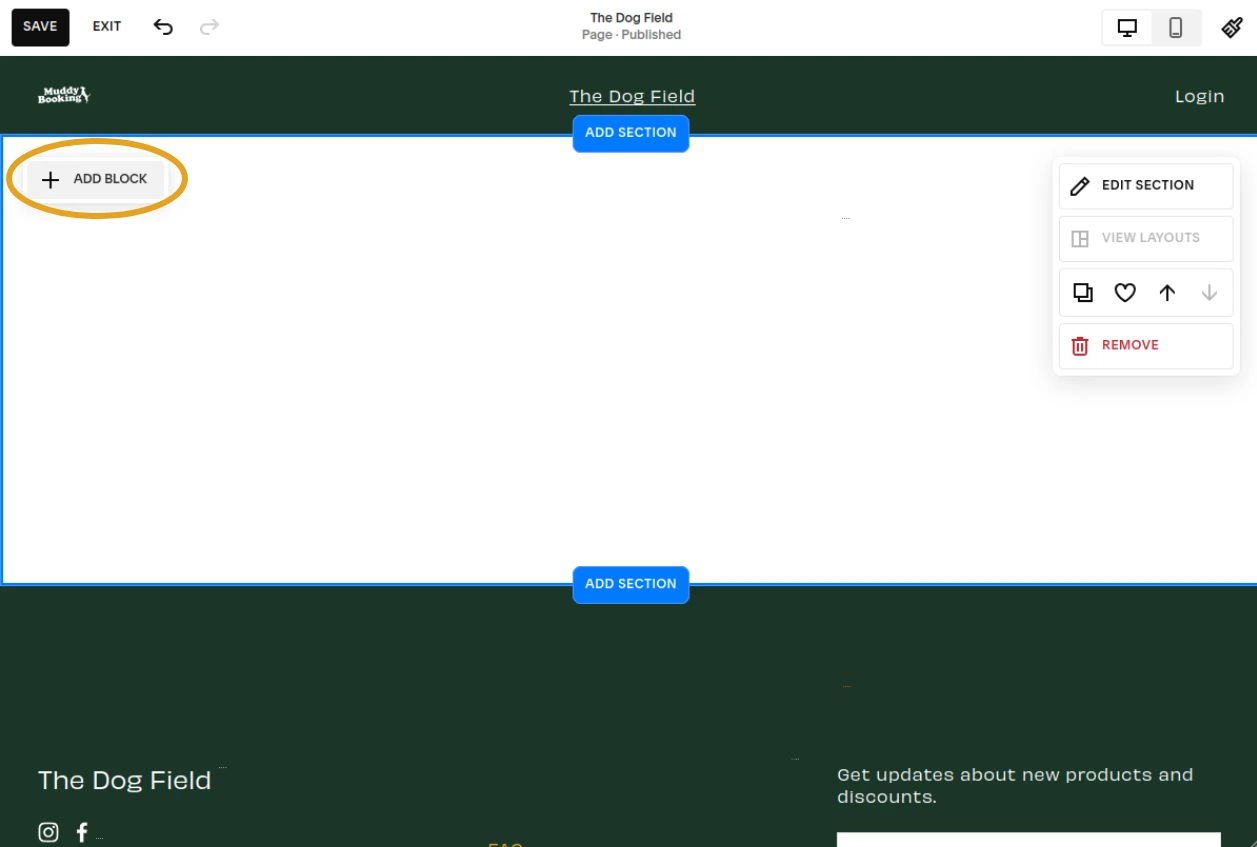
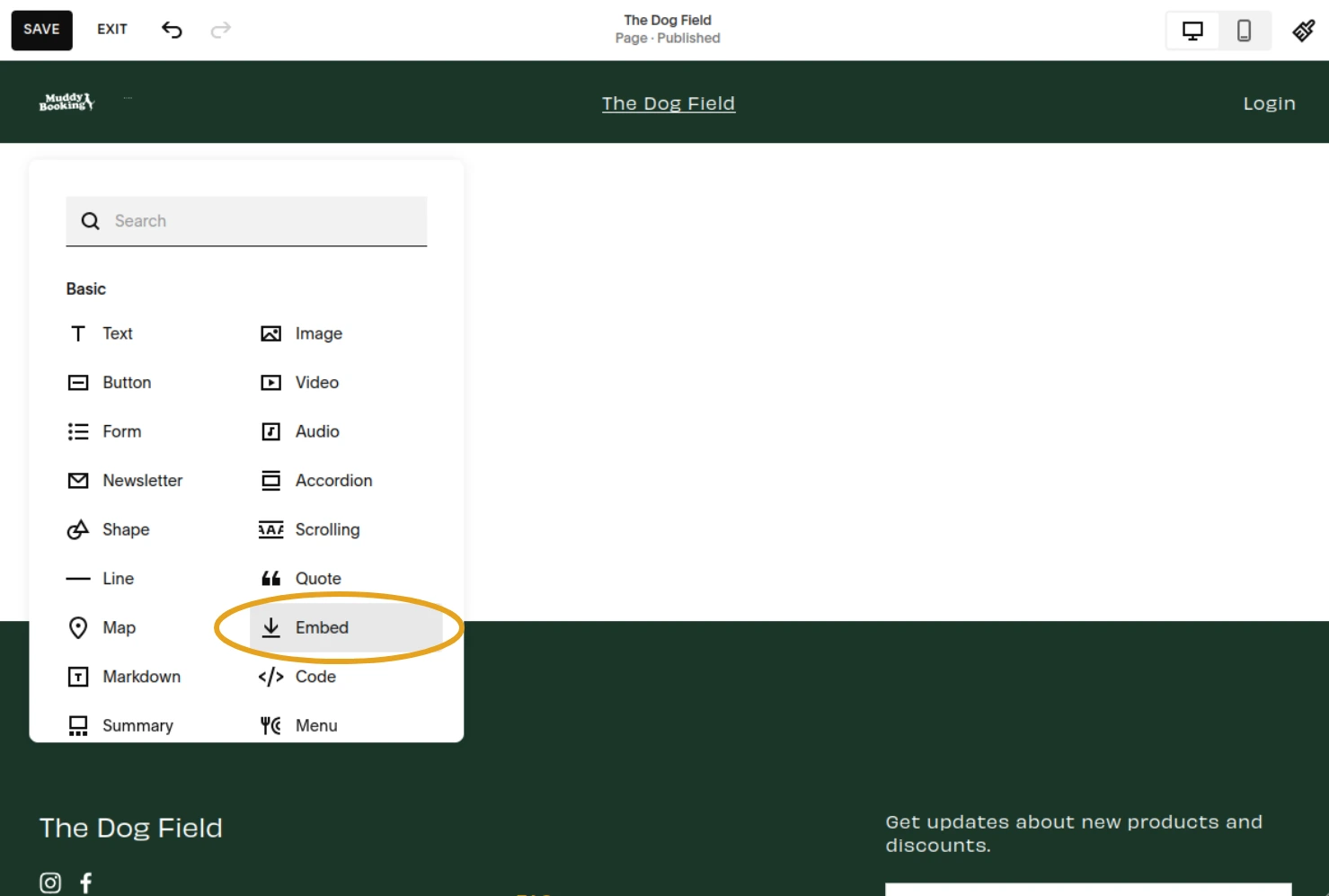
Click Add Block in your new section.
Choose Embed, not Code. Some Squarespace plans restrict the Code block.
Step 5: Paste the code
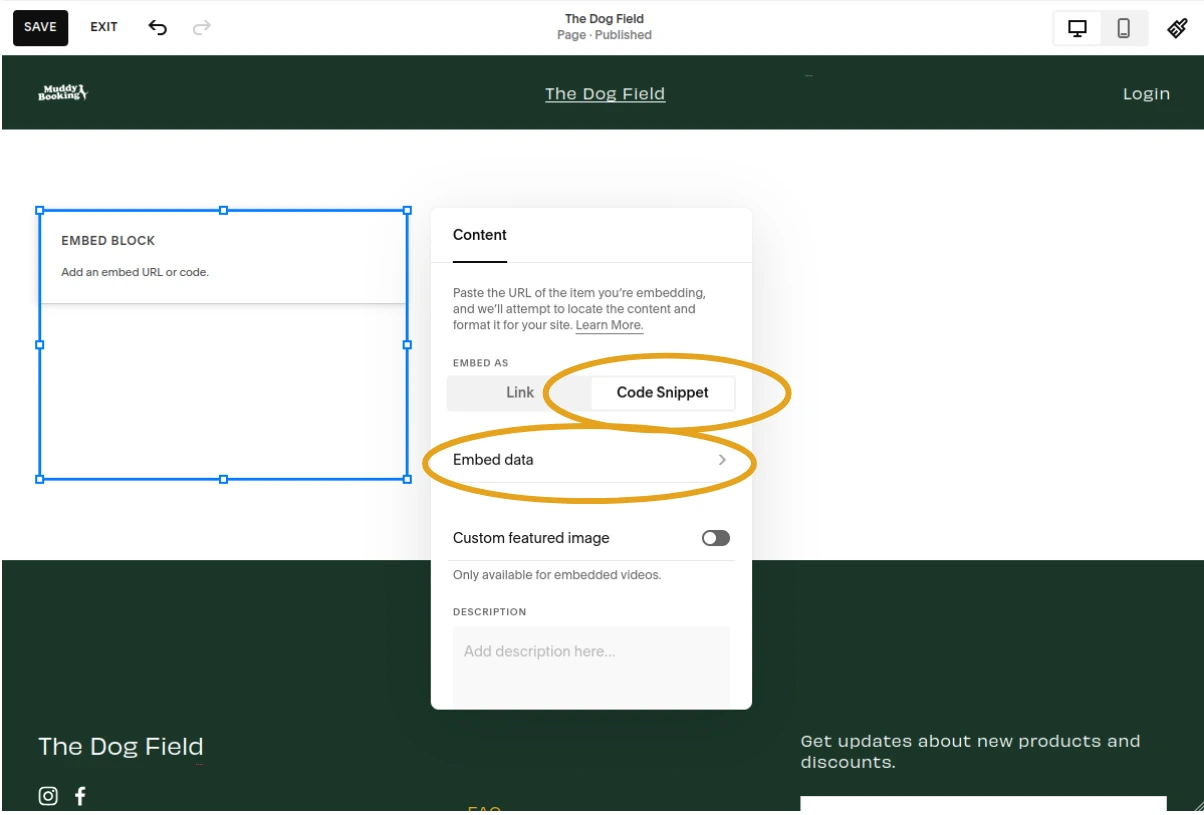
In the Embed block, select Code Snippet, then choose Embed data.
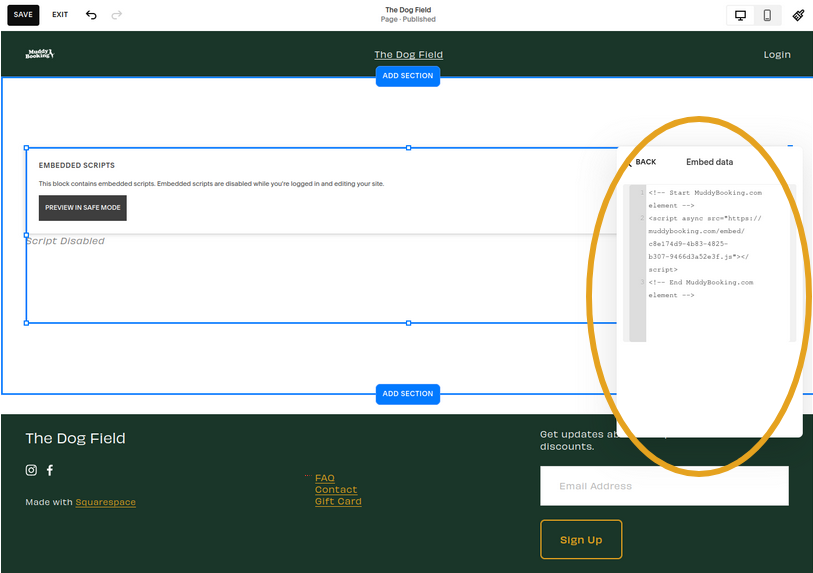
Paste the HTML you copied from the Muddy admin area into the embed field.
Step 6: Save your page
Save your changes.
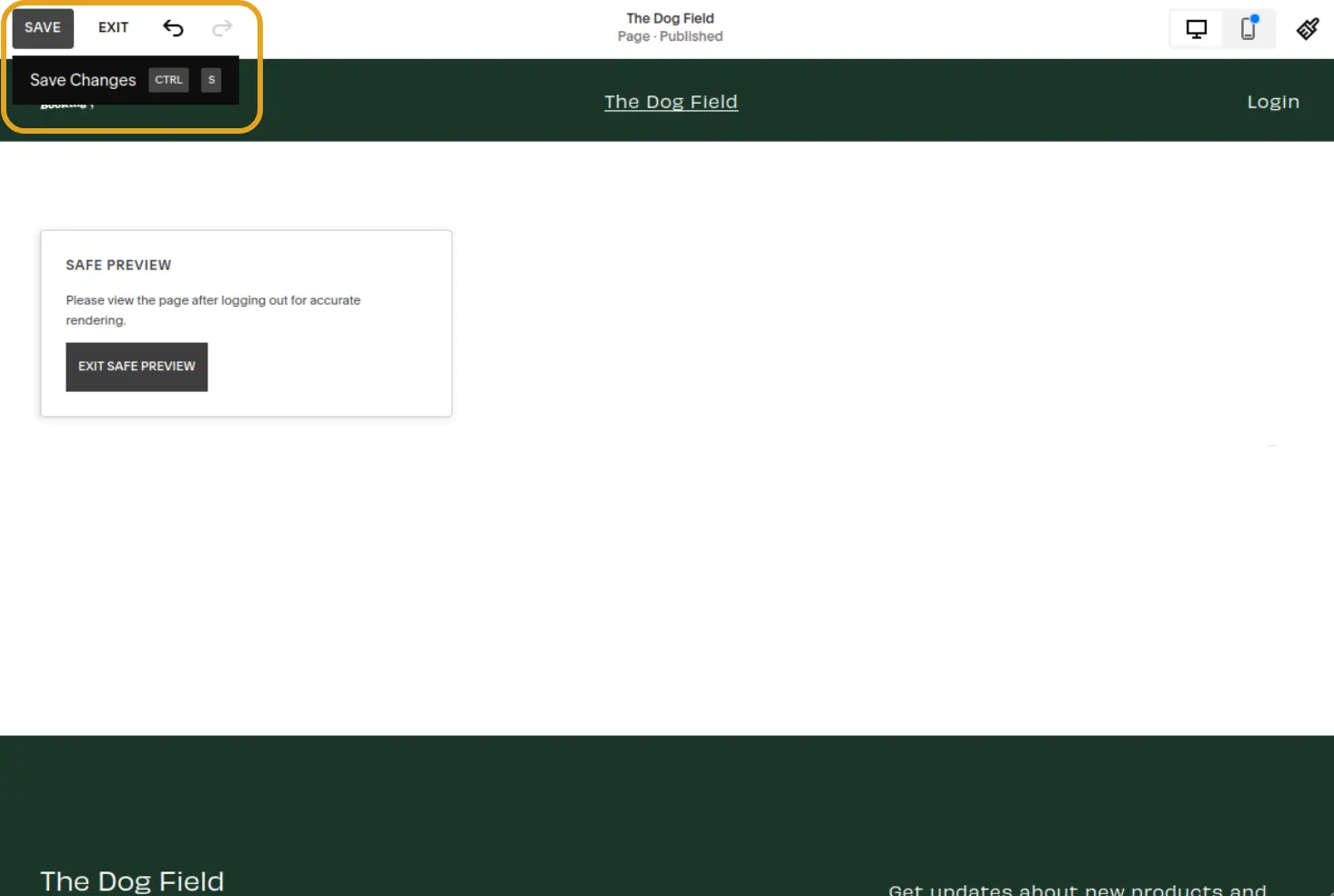
Your customers will now see a Book now button on your page, which opens your booking form.
To open the booking form from your own button, or to track bookings in analytics tools, see the Embed JavaScript API.