Overview
Muddy can send notifications to your customers by email, SMS and WhatsApp. Email is included in your plan. SMS and WhatsApp use credits, which you buy, and only send to UK mobile numbers.
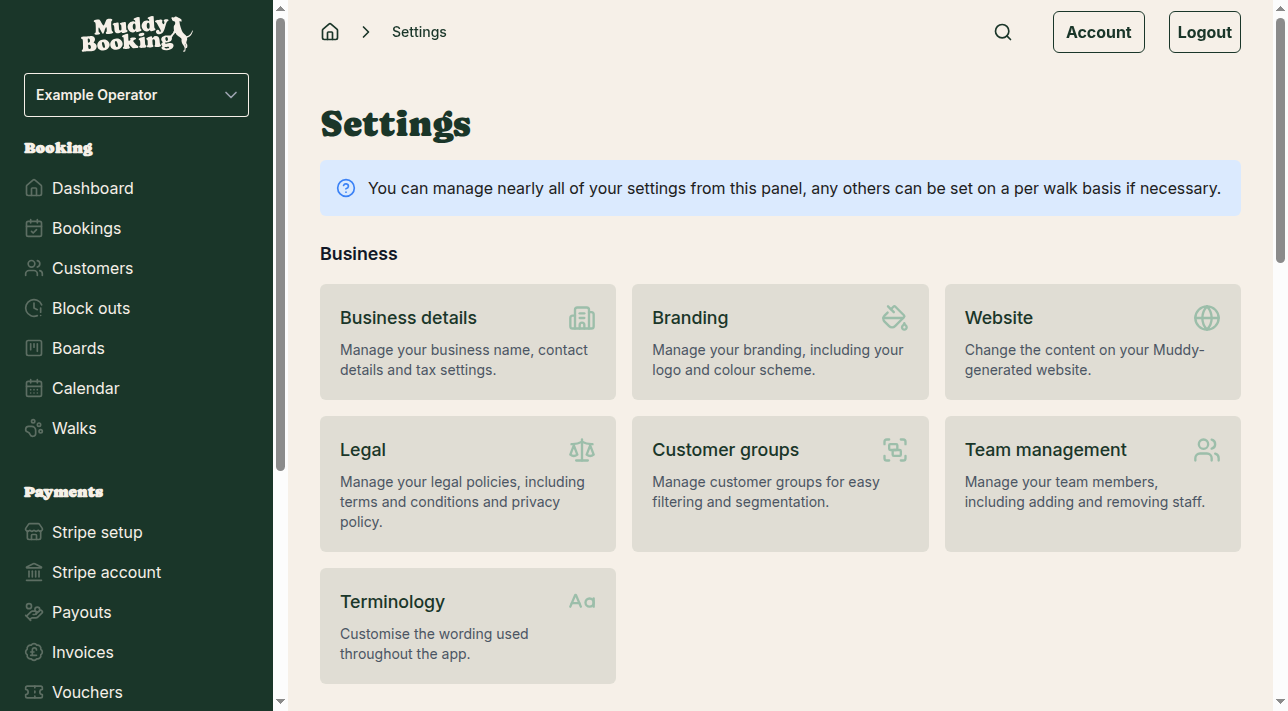
Accessing notification settings
- Go to Settings in the left-hand menu
- Scroll down to the Notifications section, which has:
- Notification settings: choose which notifications to send
- SMS credits: buy and manage SMS credits
- WhatsApp credits: buy and manage WhatsApp credits
Configuring notification types
Click Notification settings to choose which notifications are sent and how.
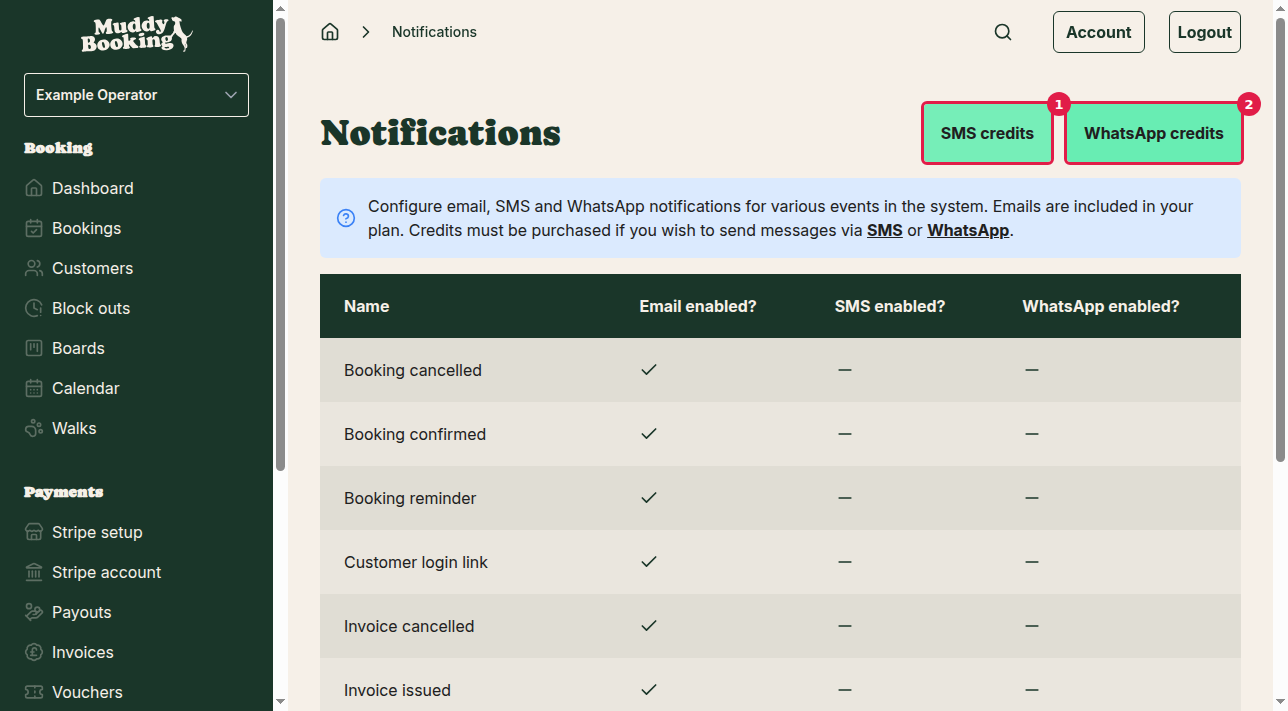
Notifications include:
- Booking confirmations and cancellations
- Booking reminders
- Invoices
- Payment confirmations
- Customer login links
- Waiting list alerts
Each can be sent by:
- Email: free
- SMS: uses credits
- WhatsApp: uses credits
Use the switches to turn each method on or off for each notification.
Setting up SMS notifications
Purchasing SMS credits
- On the Settings page, click SMS credits (1). You'll see your balance and the packages available
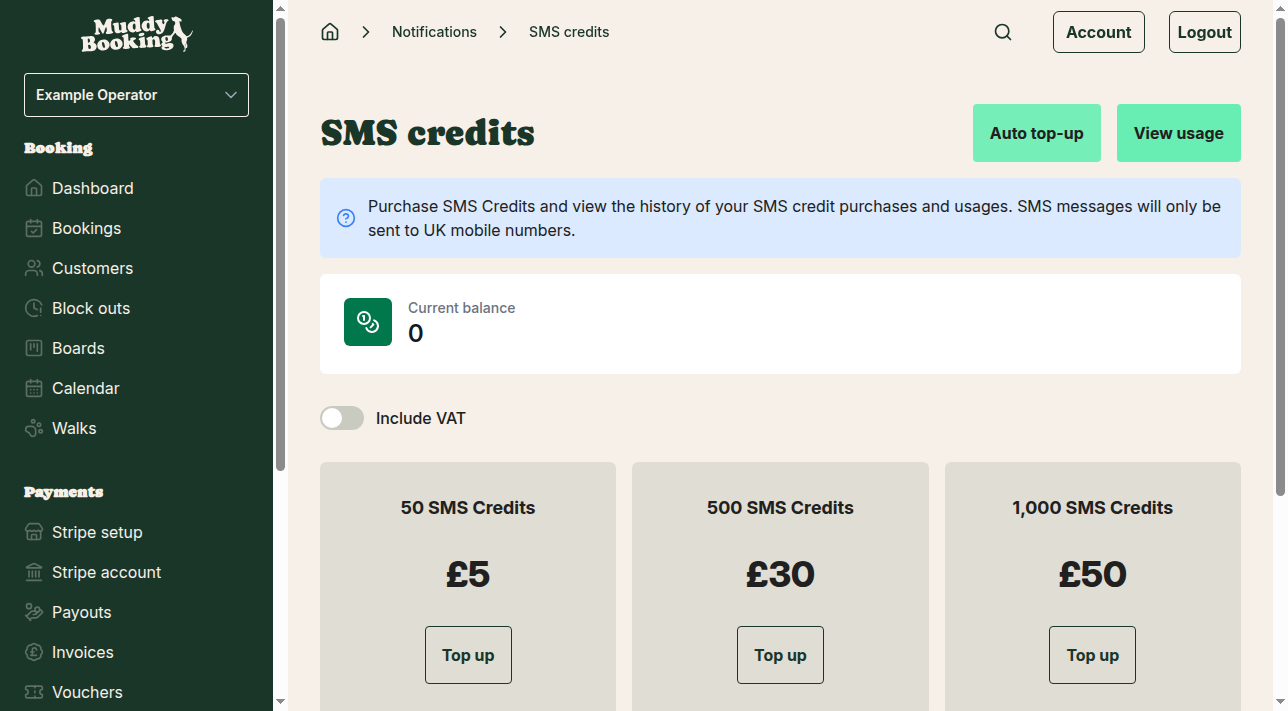
- Choose a package and click Top up
Important notes:
- Prices exclude VAT
- Credits expire 12 months after purchase
- SMS only sends to UK mobile numbers
Setting up automatic top-up for SMS
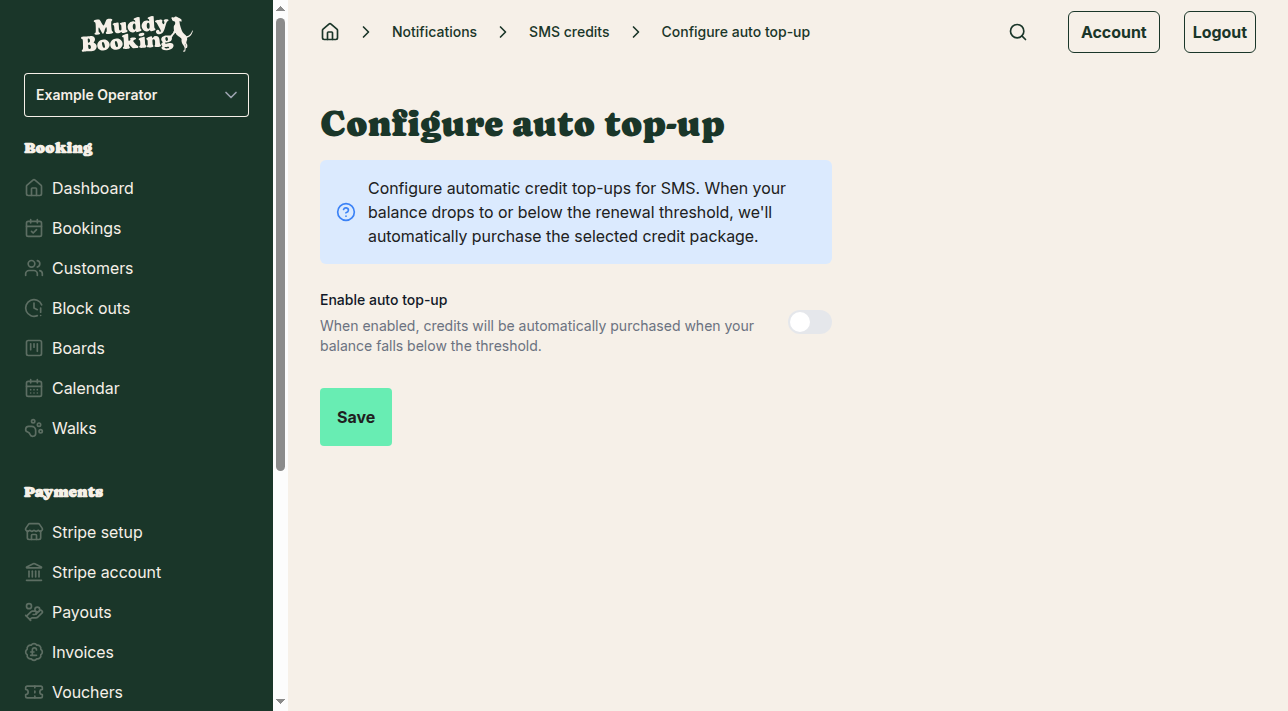
Auto top-up buys more credits when your balance falls below a level you choose, so you don't run out.
- On the SMS credits page, click Auto top-up
- Choose your settings
Viewing SMS usage history
On the SMS credits page, click View usage.
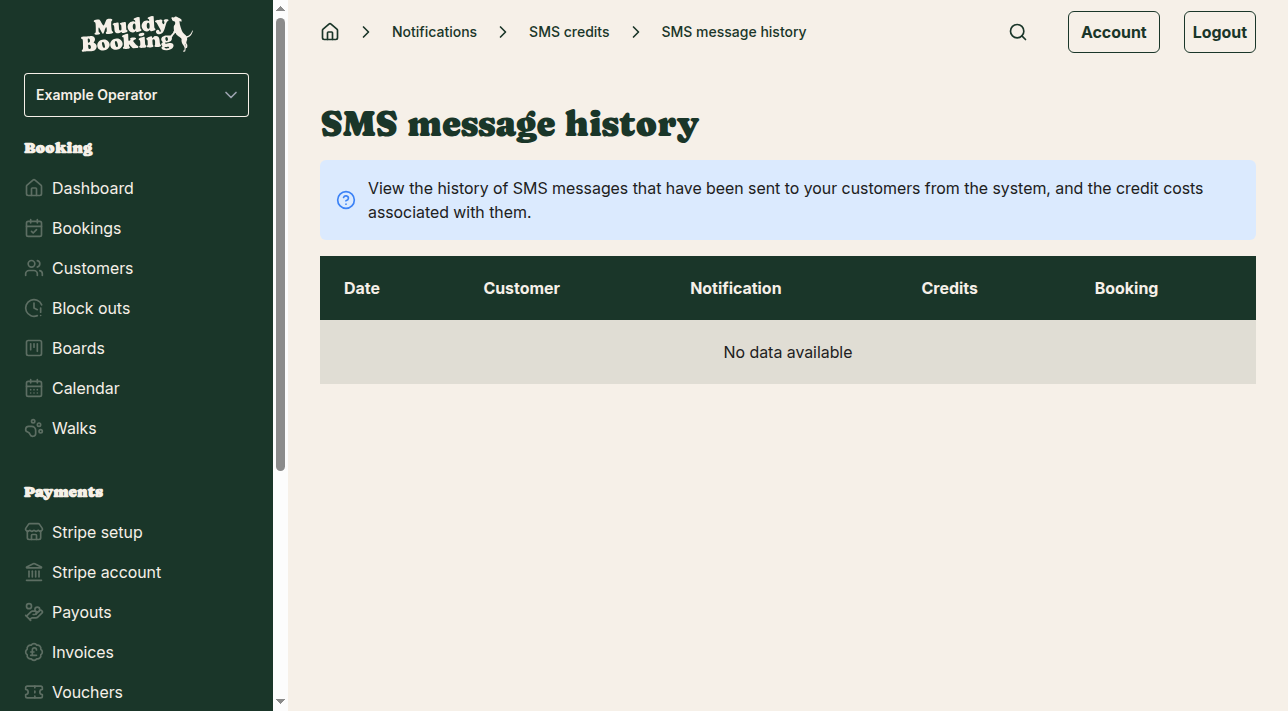
For each message you'll see:
- When it was sent
- Which customer it went to
- What type of notification it was
- How many credits it used
- The booking it relates to, if any
Setting up WhatsApp notifications
Purchasing WhatsApp credits
- On the Settings page, click WhatsApp credits (2). You'll see your balance and the packages available
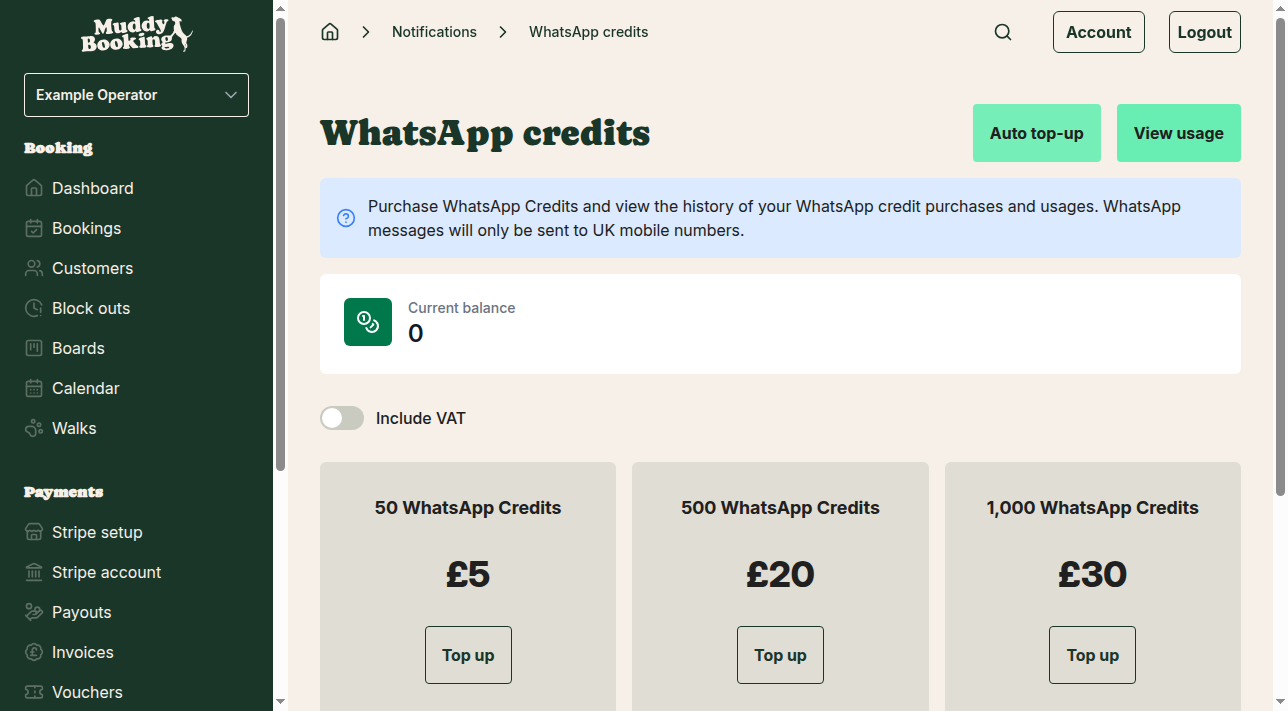
- Choose a package and click Top up
WhatsApp credits cost less than SMS credits.
Important notes:
- Prices exclude VAT
- Credits expire 12 months after purchase
- WhatsApp only sends to UK mobile numbers
Setting up automatic top-up for WhatsApp
- On the WhatsApp credits page, click Auto top-up
- Choose your settings
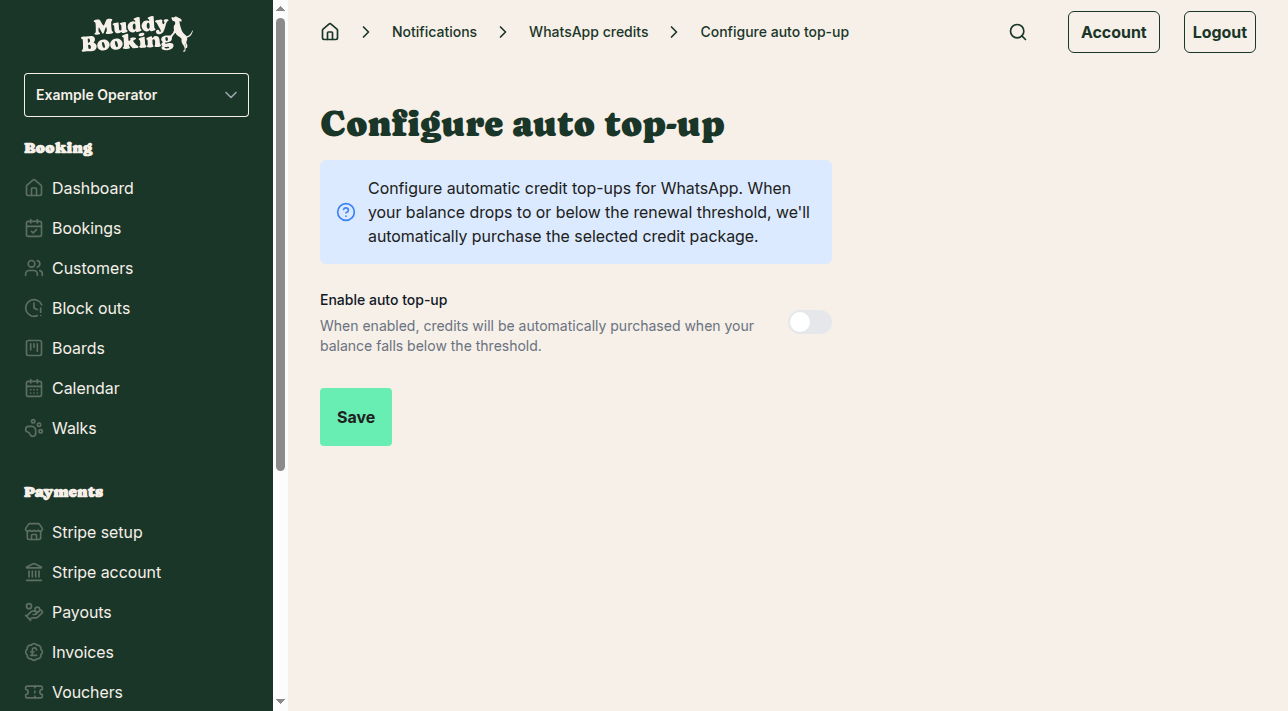
It works the same way as for SMS.
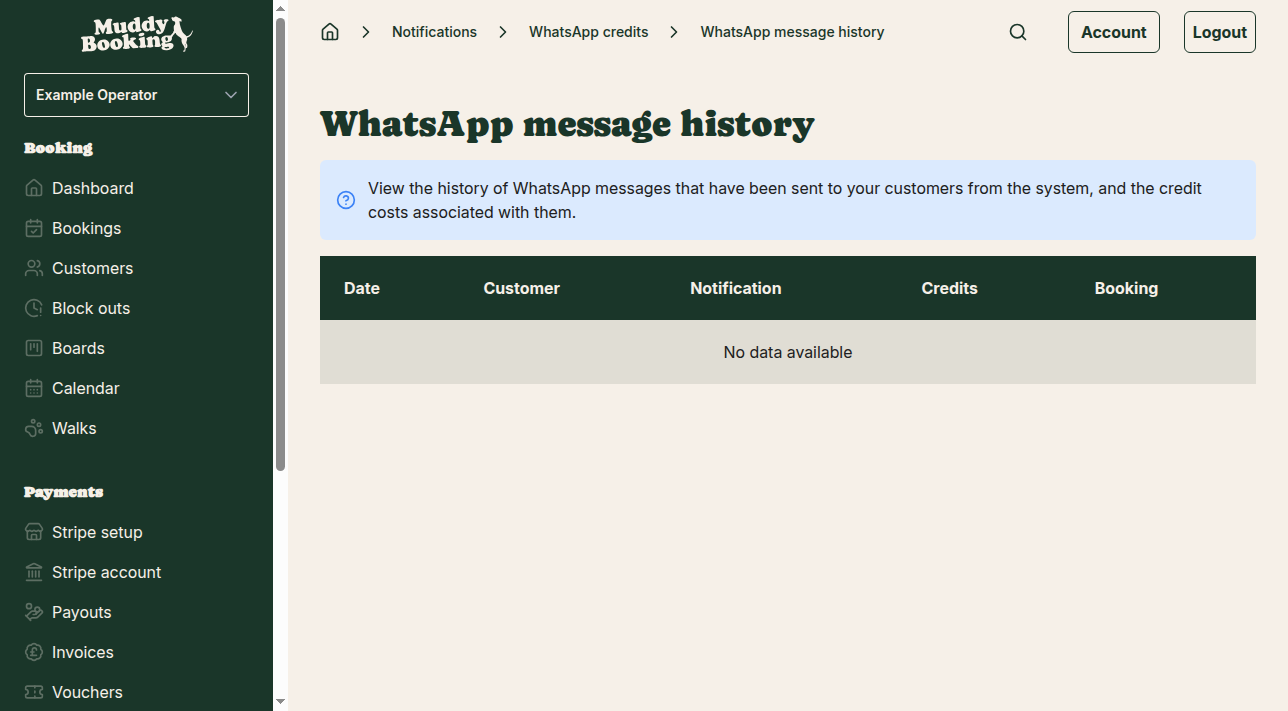
Viewing WhatsApp usage history
On the WhatsApp credits page, click View usage. It shows the same details as SMS usage.
Best practices
- Turn on both WhatsApp and SMS, with credits for each. Messages go by WhatsApp first and fall back to SMS if the customer doesn't have WhatsApp. As WhatsApp is cheaper, this reaches the most customers for the least money.
- Start with booking confirmations and reminders. They're the most useful to customers.
- Emails are sent as well as SMS and WhatsApp, at no extra cost.
- Turn on auto top-up so notifications don't stop when your credits run out.
- Keep an eye on usage for the first month to see how many credits you get through. If you send a lot, larger packages are better value.
Troubleshooting
Messages aren't being sent:
- Check you have enough credits
- Check the customer's mobile number is a UK number
- Check the notification is switched on in Notification settings
You're using a lot of credits:
- Check which notifications are switched on
- Turn off SMS and WhatsApp for notifications that don't need them, such as cancellation confirmations