Starting from scratch
Go to Walks in the left-hand menu.
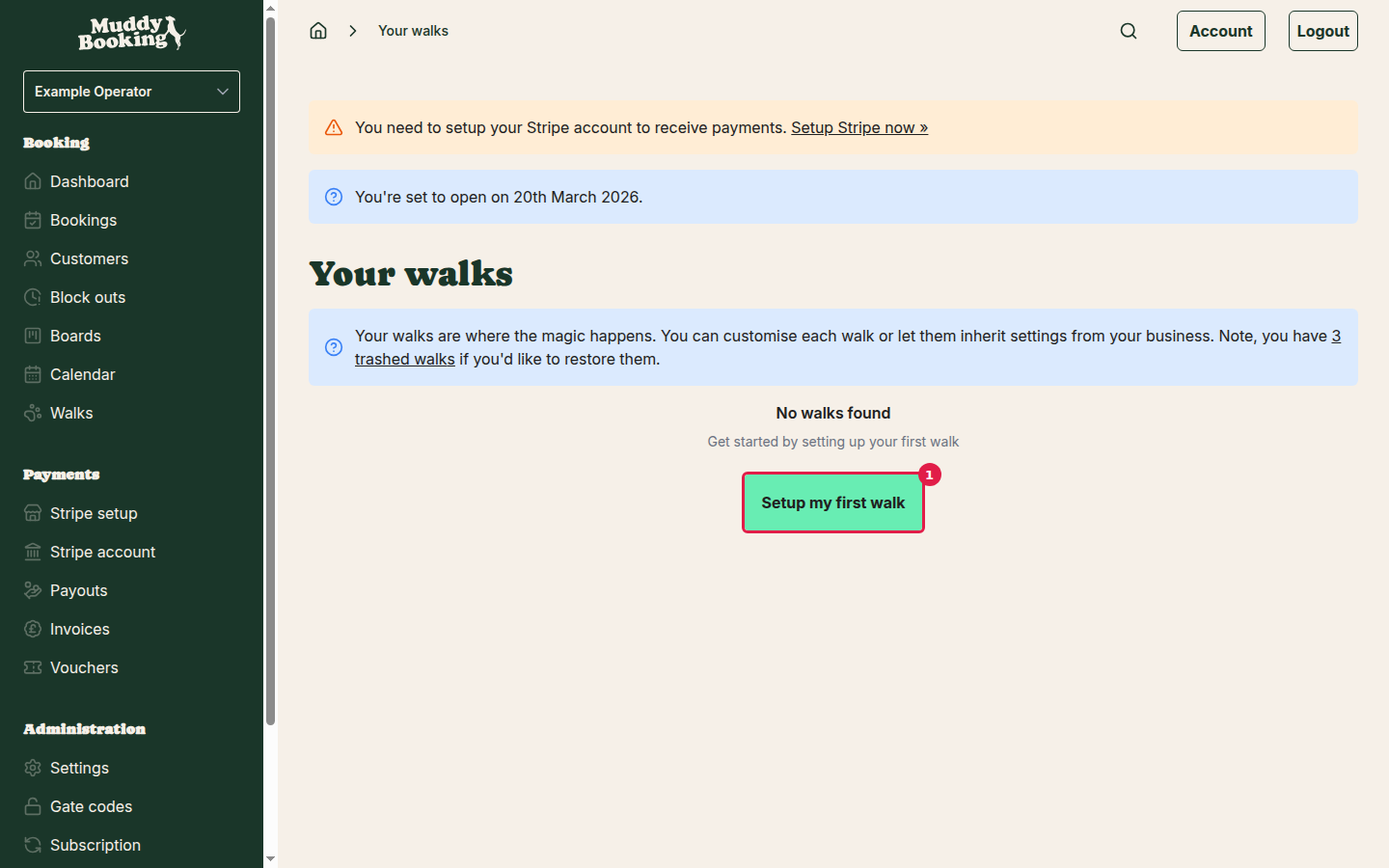
Click Setup my first walk (1).
Creating your walk
Give your walk a name. It's usually different from your business name, but if you only have one walk, using the same name is fine.
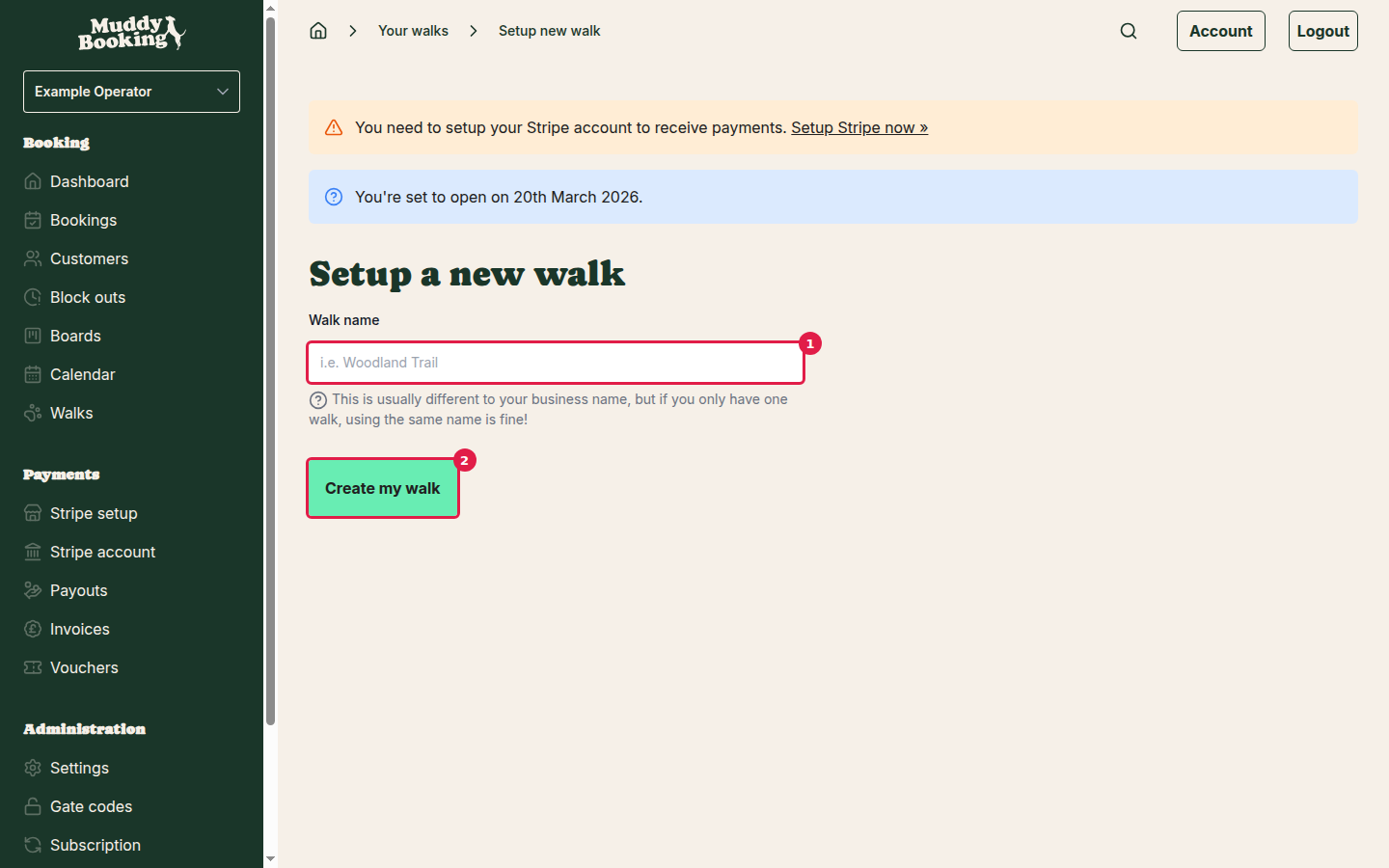
- Enter the name (1), for example "Hyde Park Morning Walk"
- Click Create my walk (2)
Styling your walk
Next you'll see the styling page, where you choose how the walk looks to customers.
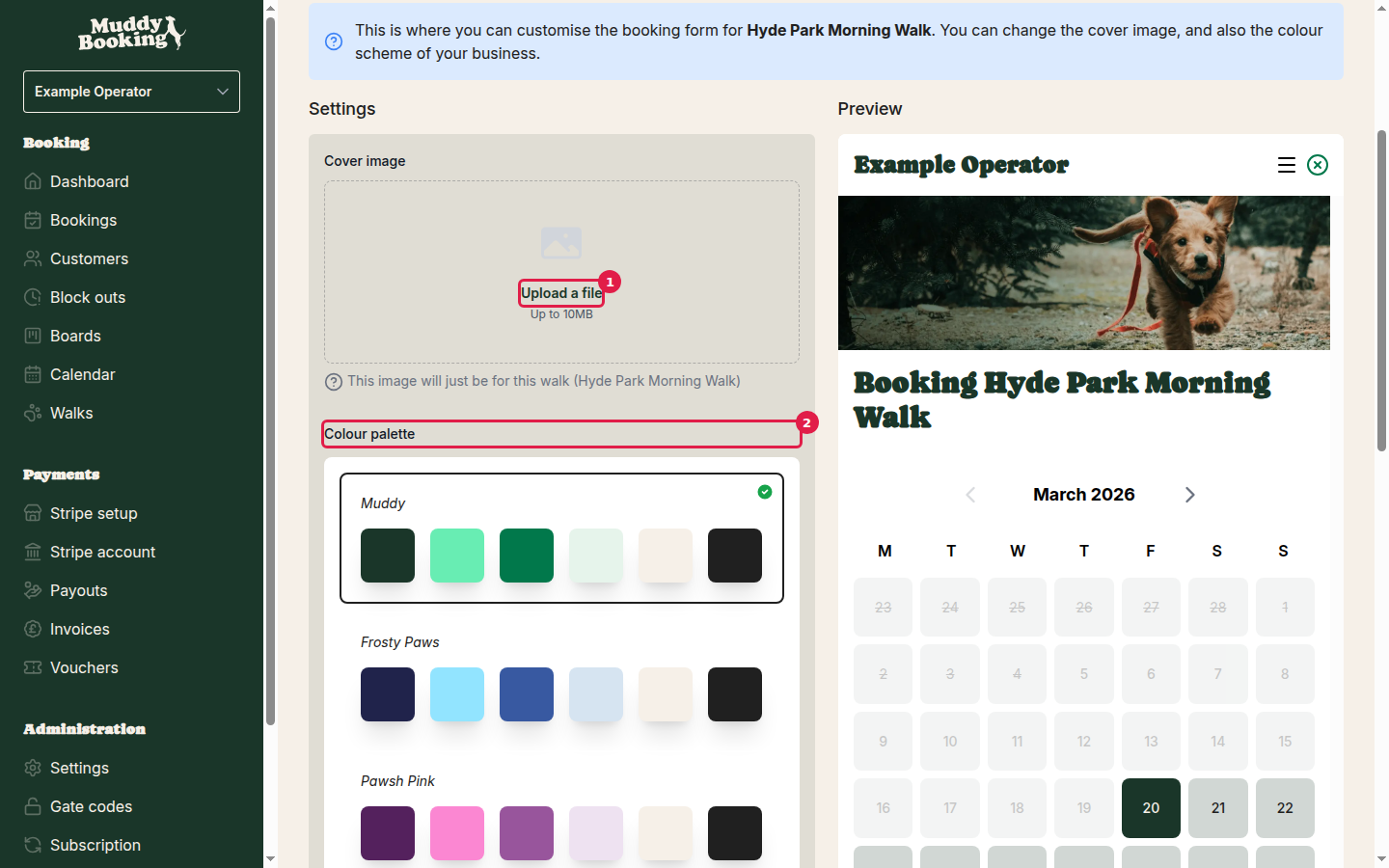
- Upload a cover image (1): a photo for this walk only, up to 10MB
- Choose a colour palette (2): one of the colour schemes, such as Muddy, Frosty Paws or Pawsh Pink. This applies to all your walks, not just this one
Click Save changes, or Preview to see the booking form as customers will.
Configuring walk settings
The walk's main settings are in its Settings section.
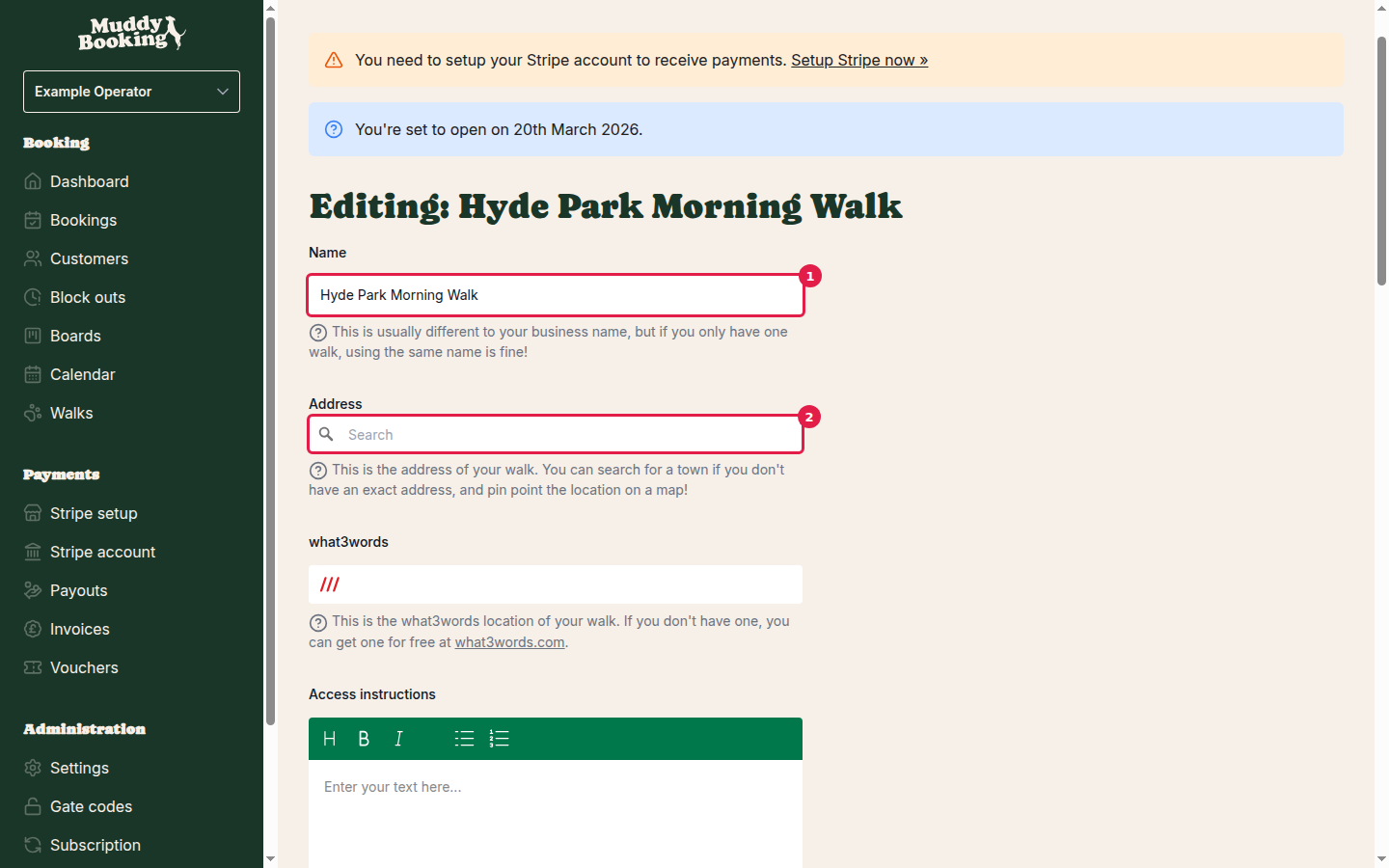
Basic information
- Name (1): the name customers see
- Address (2): where the walk is. If you don't have an exact address, search for the town and pinpoint the spot on the map
- what3words: a precise location customers can use to find you (get one free at what3words.com)
- Access instructions: directions for finding and getting into the walk. Leave out gate codes, as they're shown separately
- Short access instructions: one sentence on how to find you, up to 400 characters
Booking configuration
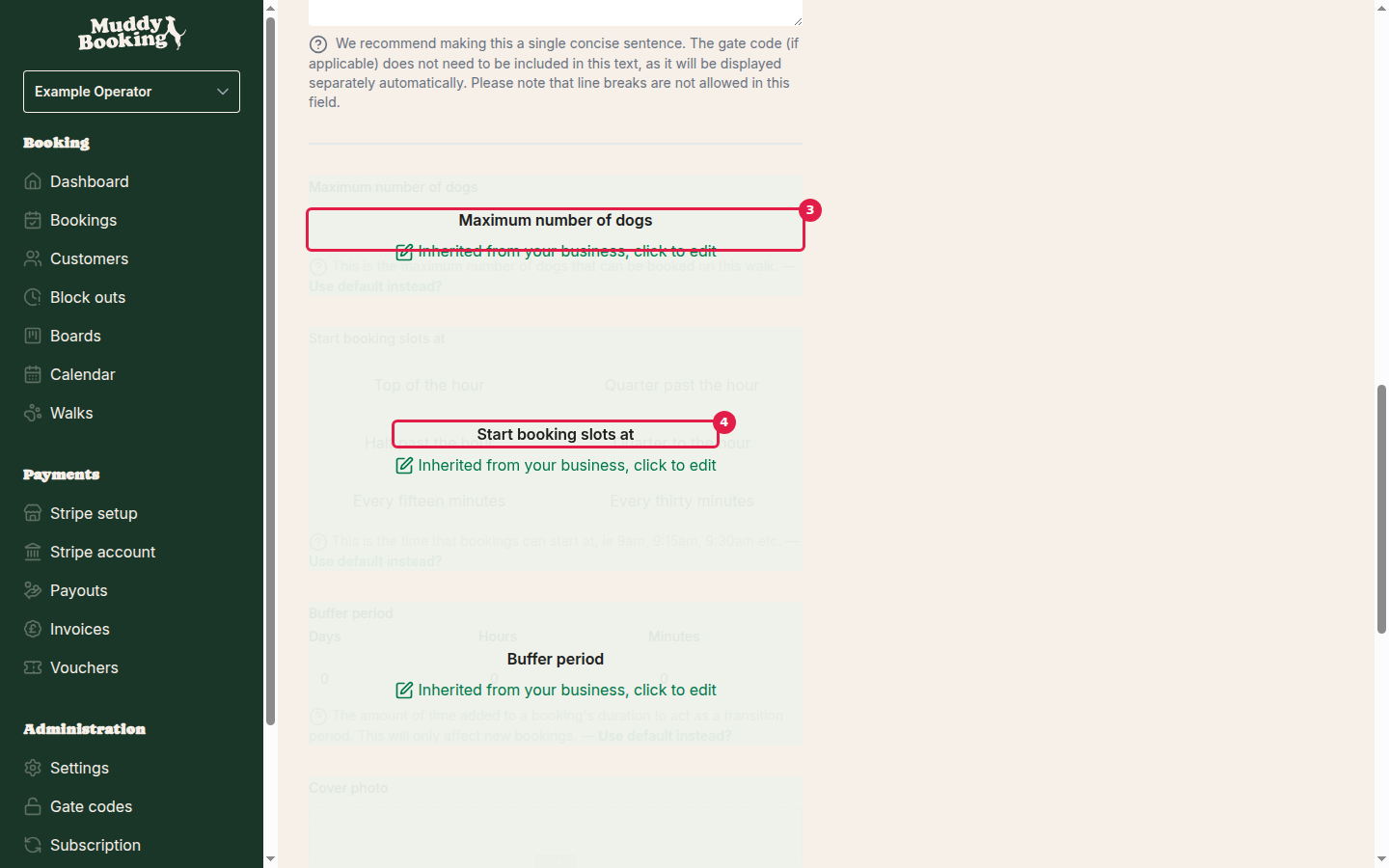
These start out the same as your business booking rules, but you can change them for this walk.
- Maximum number of dogs (3): how many dogs each slot can take
- Start booking slots at (4): when bookings can start, such as on the hour, every 15 minutes or every 30 minutes
- Buffer period: extra time between bookings
Display settings
You can also change the terminology for this walk:
- Display noun: the word used for the walk
- Display verb: the word for taking part in it
- Display subject: the word for who or what is booked, such as dogs
Most settings use your business defaults. To set a different value for this walk, untick Use default instead? next to it.
Click Save to apply your changes.
Your completed walk
The walk now appears in your walks list. Its overview page shows:
- Statistics: bookings, revenue and invoices over different time periods
- Recent bookings: the latest bookings for this walk
- Configuration summary: key settings such as maximum dogs, booking intervals and notice periods
- New booking: a button that takes you straight to the booking form
Customers can now book the walk through your booking form.