Finding the prices page
Each offering has its own prices and questions, so you can charge differently for each service at each resource. If you haven't made an offering yet, see Setting up your offerings.
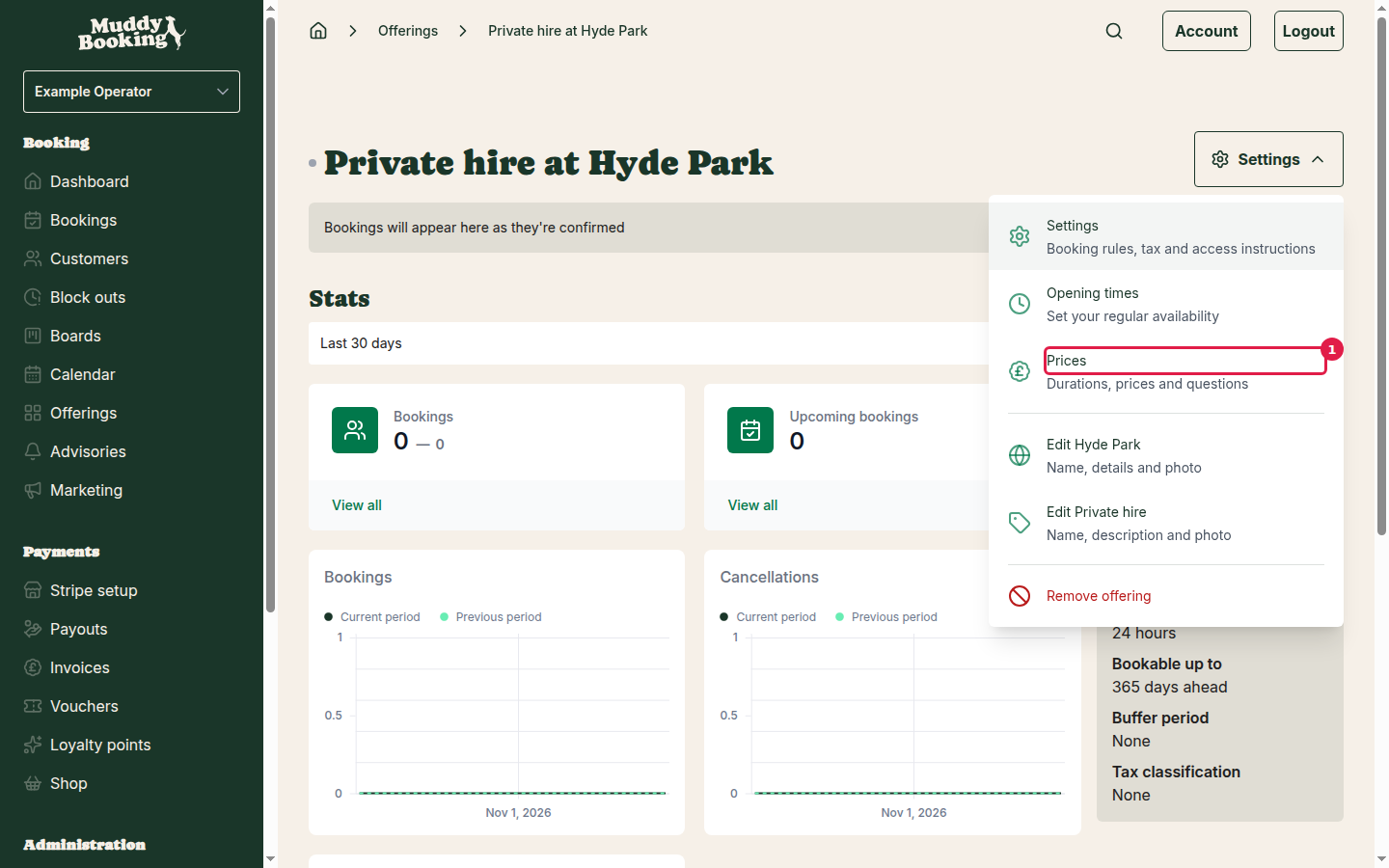
- Click Offerings in the left-hand menu.
- Click the offering you want to price.
- Click Settings.
- Click Prices (1).
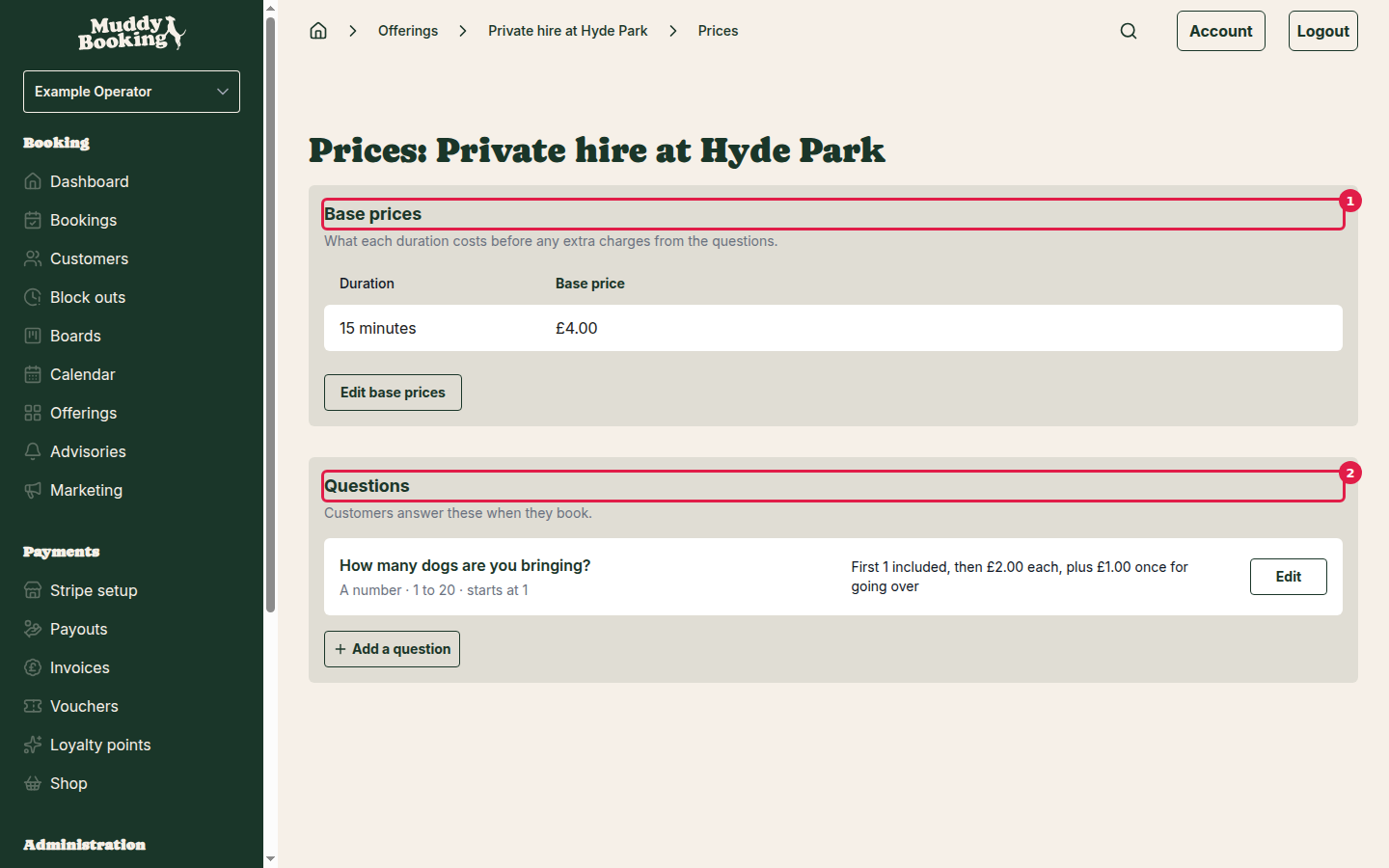
The page has three parts:
- Base prices (1): what each duration costs.
- Separate prices: whether some customers pay a different set of base prices. This only appears once you ask a question it can use.
- Questions (2): what customers answer when they book, and any extra charges that come with each answer.
Every change saves as soon as you confirm it. There's no save button for the whole page, and the page always shows what's saved.
If you used Muddy before questions were added, your dog prices and commercial prices have been turned into questions here, so you may see questions you didn't add yourself.
Base prices
The base price is what a customer pays for a duration before any extra charges from your questions. Customers can't book an offering until it has at least one duration.
- Click Edit base prices.
- Enter a price for each duration.
- To offer another length, click Add duration, enter the Duration in minutes (or pick one of the suggestions), then click Add.
- Under Prices include tax?, choose Yes if your prices already include tax, or No to add tax on top at checkout.
- Click Save.
To stop offering a duration, click the bin next to it, then click Save. You must keep at least one duration. If any recurring bookings use that duration, Muddy won't let you remove it until you change them, and shows you which ones they are.
Adding a question
Questions let you ask customers something when they book, and charge for the answer. For example, how many dogs they're bringing, or whether their dog's coat is matted.
- Click Add a question (or Write your own question if you can see suggestions).
- Enter the Question. This is what customers see when they book.
- Enter a Short name, up to 40 characters. This is shown next to the answer on booking pages and in emails, for example "Dogs".
- Under How do customers answer?, choose a type (see below).
- Set the prices.
- Click Add question.
Each short name can only be used once across your business.
Question types
- A number: customers enter how many, for example dogs or people. Use it to charge for extra ones and to limit how many come.
- Pick from a list: customers pick one answer from a list you write, for example "Puppy under 6 months" or "Adult". You need at least 2 answers.
- Yes or no: customers answer Yes or No, for example "Do you need jumps set up?".
A question can have up to 20 answers, each up to 60 characters.
Default answer
For Pick from a list and Yes or no questions, choose a Default answer. Customers see this answer already picked, and can change it.
Extra charges for an answer
For Pick from a list and Yes or no questions, enter an Extra charge for each answer. It's added on top of the base price. Leave a box empty for no extra charge.
If you offer more than one duration, switch off Same charge for every duration to set a different charge for each one.
Number questions
Limits
- At least: the number customers start at, and the fewest they can book. Leave it empty to start at 0.
- At most: the highest number a customer can enter. Leave it empty for no limit.
Prices
- Included in the price: how many the base price already covers. Customers pay nothing extra for these.
- Price for each extra one: charged for every one over the number included.
- One-off charge for going over: added once when the answer goes over the number included. Leave it empty for none.
For example, with 2 included, £3.00 for each extra one and no one-off charge, a booking for 4 dogs costs the base price plus £6.00.
To charge a different amount further up, click Add a price step. Enter From answer number and the Price for each one from that point. For example, £3.00 each for extra dogs, then £1.00 each from the 5th. Each step must start after the one before it.
If you offer more than one duration, switch off Same price for every duration to set different prices for each one.
Kinds
A number question can have Kinds, for example Small, Medium and Large, or Adults and Children. Customers then enter a separate number for each kind, and each kind has its own prices. Each kind's box starts at 0, and At least and At most count all kinds added together.
Kinds are optional, and usually not needed. Only add them when customers give a separate number for each, and you charge differently for them. A new kind is included free until you give it a price.
Suggested questions
When an offering has no questions yet, Muddy suggests some that businesses like yours often ask, such as How many dogs are you bringing? or Are you a professional dog walker?. Each suggestion says what it's for.
Click Add on a suggestion to open it already filled in. Change anything you like, set your prices, then click Add question.
Suggestions go away when you leave the page.
Using a question on more than one offering
Questions belong to your business, so you can ask the same one on several offerings.
- When adding a question, choose one from Ask a question you already use. Its default and charges, or its limits and prices, are filled in from where you already ask it. Change them for this offering if you need to.
- When adding a new question, tick other offerings under Also add it to. They start with the same prices, and you can change them later on each one's Prices page.
Prices, limits and the default answer are set separately for each offering. The wording, answers and kinds are shared. See Changing the wording or answers.
If you add a question to an offering that has recurring bookings, Muddy tells you how many are affected before adding it. Their future bookings will use the default answer (or the At least number) and its price.
Editing a question
Click Edit next to a question to change its default, limits or prices for this offering, then click Save.
If you close the pop-up with unsaved changes, Muddy asks whether to discard them.
Muddy won't let you change At least or At most in a way that rules out answers on existing recurring bookings. It shows you which bookings to change first.
Changing the wording or answers
Click Change the wording or answers (or Change the wording or kinds, or Change the wording for a Yes or no question) at the top of the pop-up. This changes the question everywhere you ask it, and past bookings show the new wording too. Their prices don't change.
Here you can edit the Question and Short name, rename answers or kinds, and click Add an answer or Add a kind. A new answer has no extra charge until you set one. Click Save to apply.
The answers to a Yes or no question can't be changed.
Archiving an answer or kind
Answers and kinds can't be deleted once saved, but you can archive them. Click Archive next to an answer (or the archive icon next to a kind), then click Save.
- Customers can't pick an archived answer. Past bookings still show it.
- You can't archive the last answer or kind.
- You can't archive an answer that's the default answer on any offering. Pick another default there first.
- If recurring bookings use the answer, Muddy shows how many before you archive it. Those recurring bookings switch to each offering's default answer and its price. For a kind, they stop including it, unless that would take a recurring booking below the At least number. Muddy then shows which ones to change first. Bookings already made keep what they had.
- If the answer has its own column of base prices (see Separate prices), the column is hidden while the answer is archived.
To undo it, click Bring back next to the archived answer, then click Save.
Separate prices
Most price differences belong on a question's extra charges. Use separate prices only when some customers pay different base prices for every duration, for example businesses or professional dog walkers. Each answer then gets its own column of base prices.
This section appears once you ask a Pick from a list or Yes or no question with at least 2 answers.
- Under Separate prices, choose Yes, by their answer to your question.
- Read the confirmation, then click Change it.
- The Base prices pop-up opens. Muddy has copied your current prices into each new column, including that question's extra charges, so nobody's price changes yet. Set the prices for each column.
- Click Save.
Every column needs a price for every duration, and you can choose whether each column's prices include tax. The question that splits the prices has no extra charges of its own.
On your other questions, switch off Same charge whatever customers answer to (or Same price whatever customers answer to on a number question) that question to charge each column differently.
Changing or turning off separate prices removes prices. If you switch to a different question, or choose No, everyone pays the same prices, Muddy keeps the prices of the default answer's column and removes the others. You'll see which columns will be removed before you confirm. Existing bookings keep the price they were booked at.
Stopping asking a question
This removes the question's prices on this offering. If the question splits your prices, everyone pays the default answer's column of prices and the other columns are removed. Existing bookings keep the price they were booked at, and the question is still asked on your other offerings.
- Click Edit next to the question.
- Click Stop asking this question.
- Click Stop asking to confirm.
What customers see
When customers book, they answer your questions on the booking form:
- A Pick from a list or Yes or no question shows its answers, with the default already picked.
- A number question shows a number box that starts at the At least number and stops at At most. With kinds, there's a box for each kind, each starting at 0.
The price they pay is the base price for their duration (from their column, if you use separate prices), plus any extra charges from their answers.