How it works
Once you turn it on, Muddy Booking sends each customer a message about two hours after their visit ends, asking them to leave a review. The message contains a "Leave a review" button that takes them straight to Google, Facebook, or a page where they can pick which one.
A few things to know before you start:
- Each customer is only ever asked once by your business, no matter how many visits they have.
- Only visits that actually went ahead are included. Cancelled bookings and visits that never started are ignored.
- Customers who have opted out of marketing are never sent a request.
- Messages go out between 9am and 8pm in your business's time zone. If the two-hour window falls after 8pm, the message is held until 10am the next morning.
- When you first turn it on, it will only ask about visits from the last couple of days. It does not go back through your entire history.
Finding the feature
In the left-hand menu, click Marketing. You will see a list of automations. Ask for reviews shows whether it is off, running, or needs setup, and how many requests were sent and how many customers clicked the review link in the last 30 days.
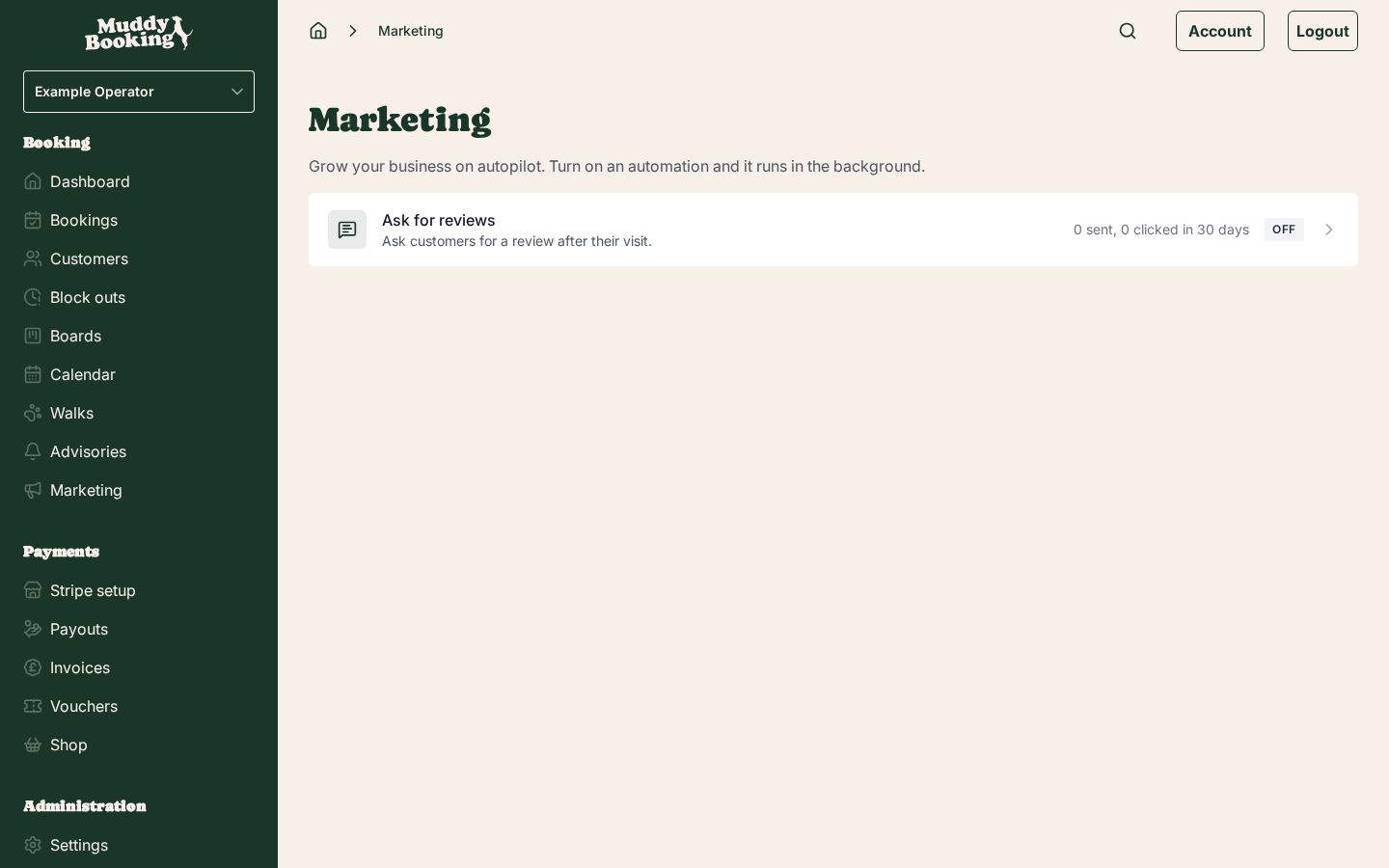
Click Ask for reviews to open the settings page.
Linking your Google listing or Facebook Page
Before you can turn on review requests, you need to link at least one review platform so Muddy Booking knows where to send customers.
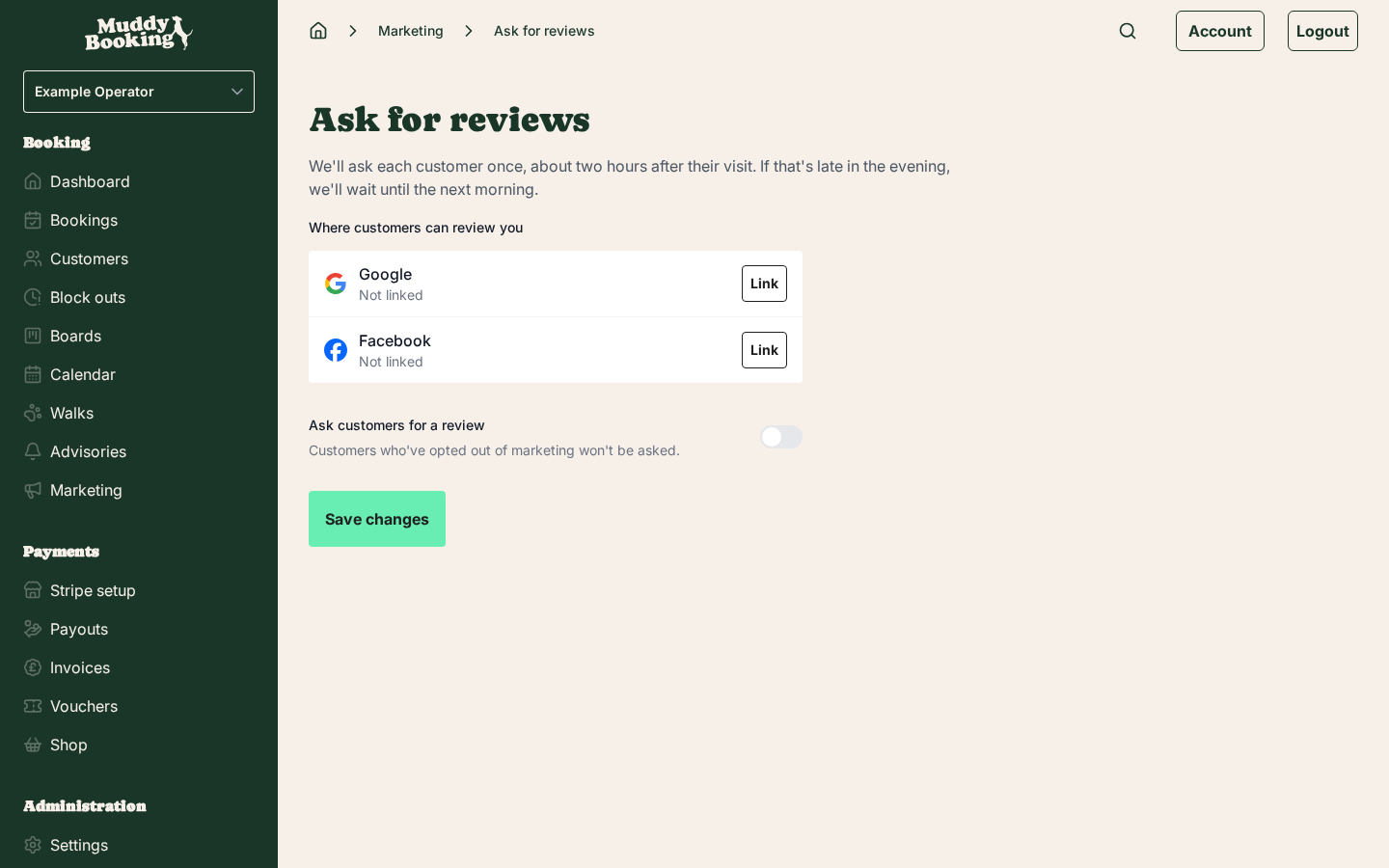
The page shows a row for Google and a row for Facebook, each showing whether it is linked.
Linking Google
Click Link next to Google. A search box appears where you can type your business name to find your Google listing. Select the correct listing from the results. Once linked, the row shows your business name and a View link so you can confirm it is the right one. To switch to a different listing later, click Change.
Linking Facebook
Click Link next to Facebook and paste the link to your Facebook Page. If you see Connect instead, click it to sign in with Facebook and choose your Page. Once linked, the row shows your Page and a View link. To switch to a different Page later, click Change.
Links to Google and Facebook are saved as soon as you add them.
You only need to link one platform to get started. If you link both, you can choose what customers see (explained in the next section).
Turning on review requests
Once at least one platform is linked, switch on Ask customers for a review. The page expands to show the delivery options.
Where customers leave reviews
If you have linked both Google and Facebook, a Where should customers leave reviews? option appears. Choose one:
- Google: all customers go straight to your Google listing.
- Facebook: all customers go straight to your Facebook Page.
- Let them choose: customers see a page in your branding with both a Google button and a Facebook button. Each button opens the review site in a new tab.
If only one platform is linked, customers always go directly to that one.
How the request is delivered
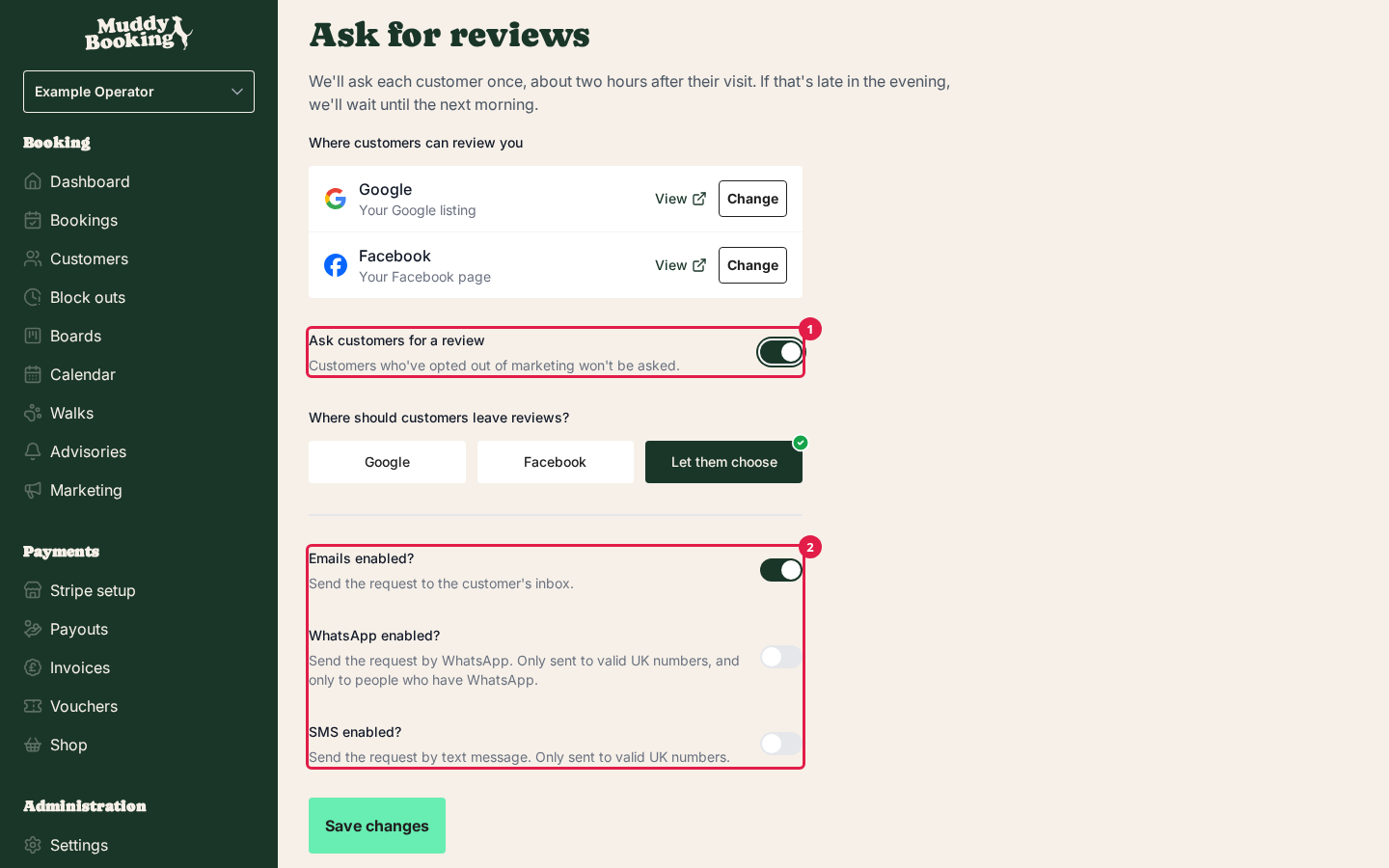
Once Ask customers for a review is on (1), choose how the request is sent (2). You can turn on any combination of Emails, WhatsApp, and SMS. At least one must be on.
- Emails: a review request email is sent to the customer's email address.
- WhatsApp: a WhatsApp message is sent to customers with a UK mobile number who use WhatsApp. The message includes a "Leave a review" button and an Unsubscribe button.
- SMS: a text message with a link, sent to customers with a UK mobile number. When both WhatsApp and SMS are on, SMS is only used for customers who can't get the WhatsApp message.
WhatsApp and SMS messages use notification credits. The page will tell you if a message costs more than one credit. You can find out more about credits in Setting up WhatsApp and SMS notifications.
When SMS is on, you can edit the text message that is sent.
Saving
Click Save changes to save the switch, where customers leave reviews, and the delivery channels.
Understanding the stats
Back on the Marketing page, the Ask for reviews row shows:
- How many requests were sent in the last 30 days.
- How many were clicked (that is, how many customers opened the review link). Note that link previews generated automatically by apps like WhatsApp are not counted as clicks, only real customer taps are.
Turning it off
Go to Marketing, click Ask for reviews, switch off Ask customers for a review, and click Save changes. No further requests will be sent. Customers who have already been asked will not be asked again if you turn it back on.