What collections are
Collections are the sections of your shop front. You might have one for Treats, one for Leads and harnesses and one for Gift cards. Customers see each collection as its own section, in the order you choose.
A product can be in more than one collection. For example, a Christmas treat box could be in both Treats and Christmas gifts.
Note: in the shop, "collection" means a group of products. It's nothing to do with customers collecting an order from you. That's covered in Setting up delivery and collection.
Getting to your collections
- Click Shop in the left-hand menu.
- Click Collections.
The Collections tile appears once you've opened your shop for the first time. Until then, click Settings in the left-hand menu, then Collections.
Each collection shows as a card with its cover image, its name, how many products it has, and the products themselves.
Creating a collection
- On the Collections page, click Create.
- Enter a Collection name (1). Customers see this as the heading for the section.
- Add a Cover image (2) if you'd like one. This is optional.
- Click Create collection (3).
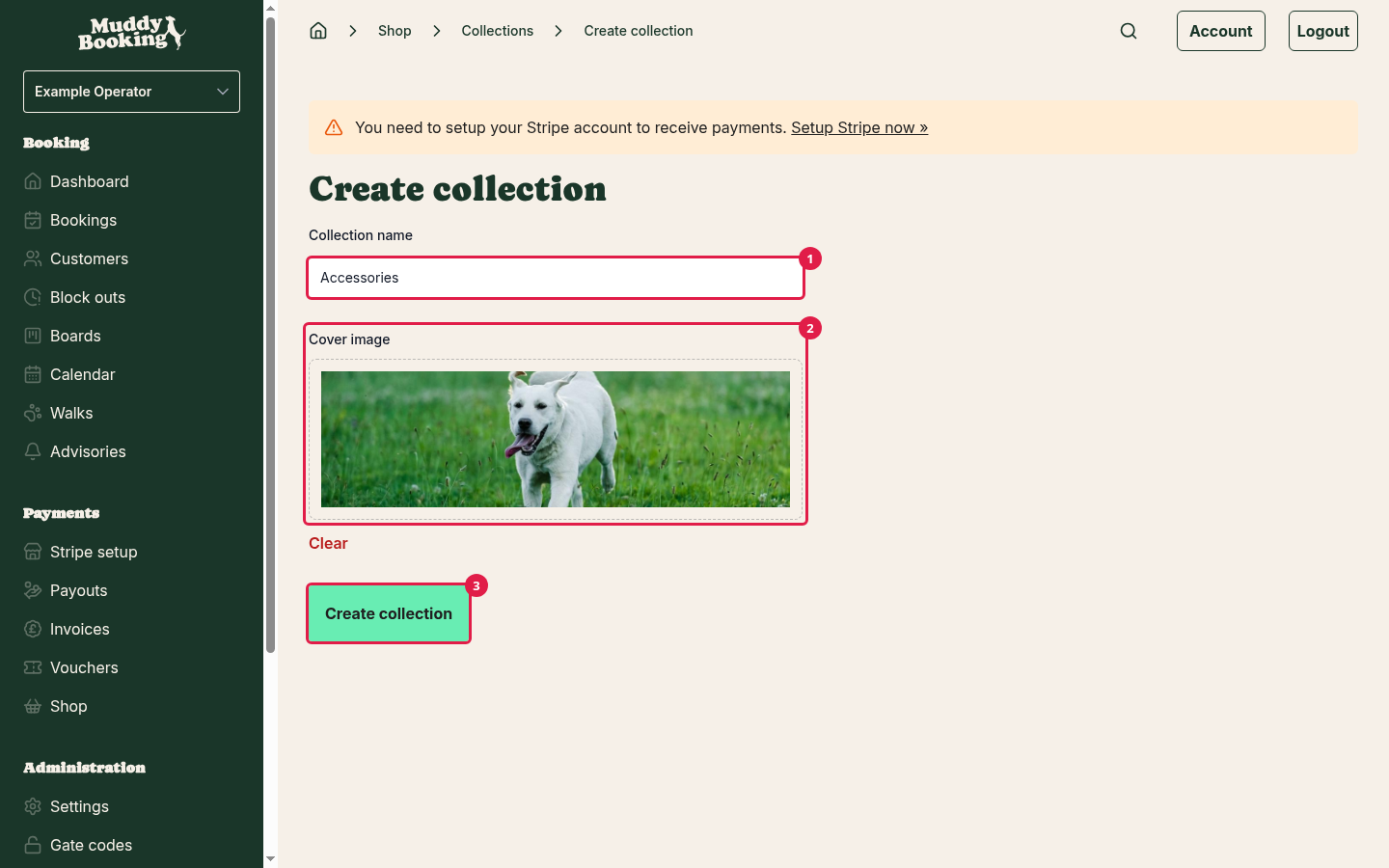
Your new collection starts empty. An empty collection doesn't show in your shop, so add some products next.
Adding products to a collection
- On the collection's card, click Add products.
- Pick the products you want to add (1).
- Click Add products (2).
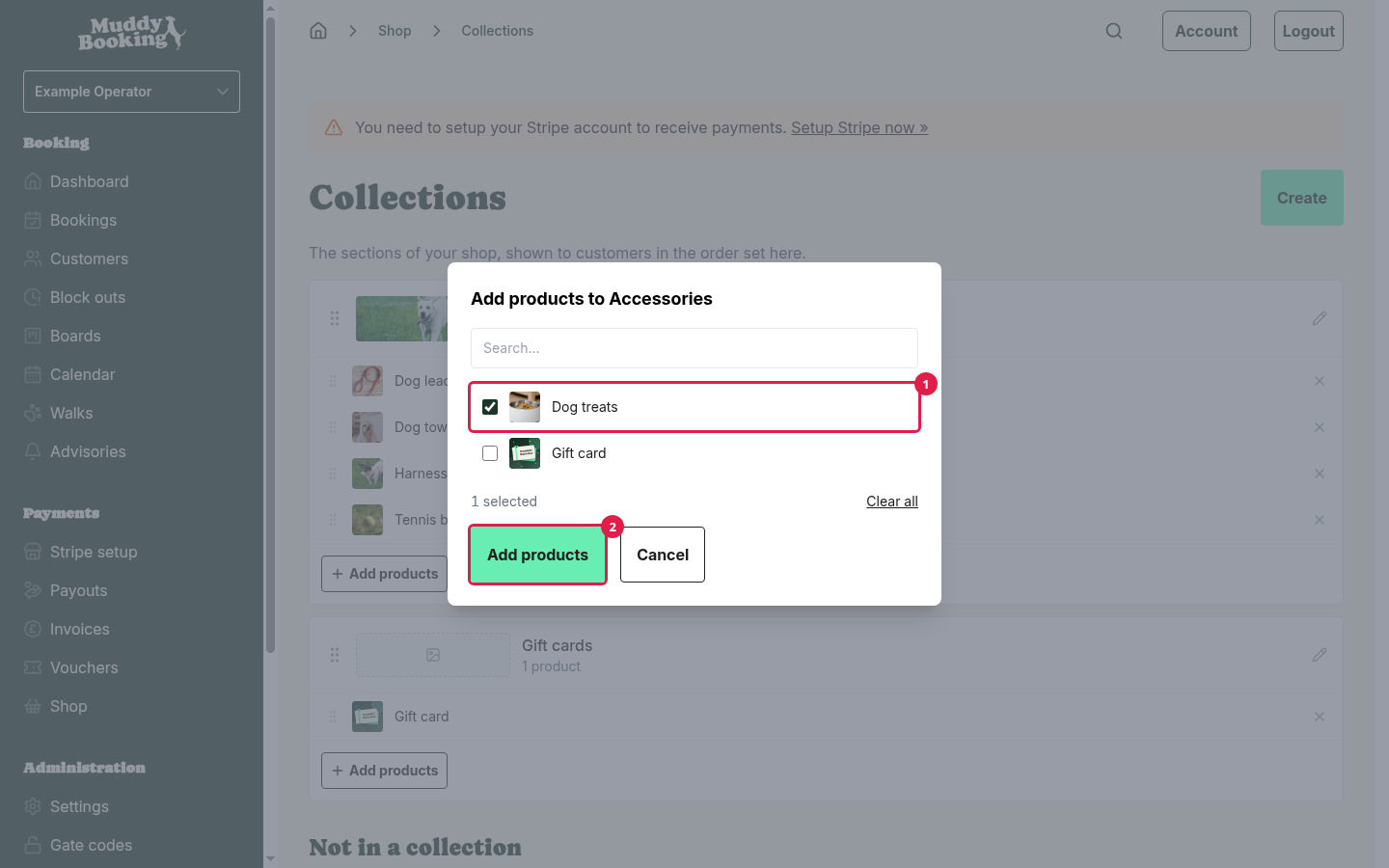
You'll see Products added to the collection. when it's done.
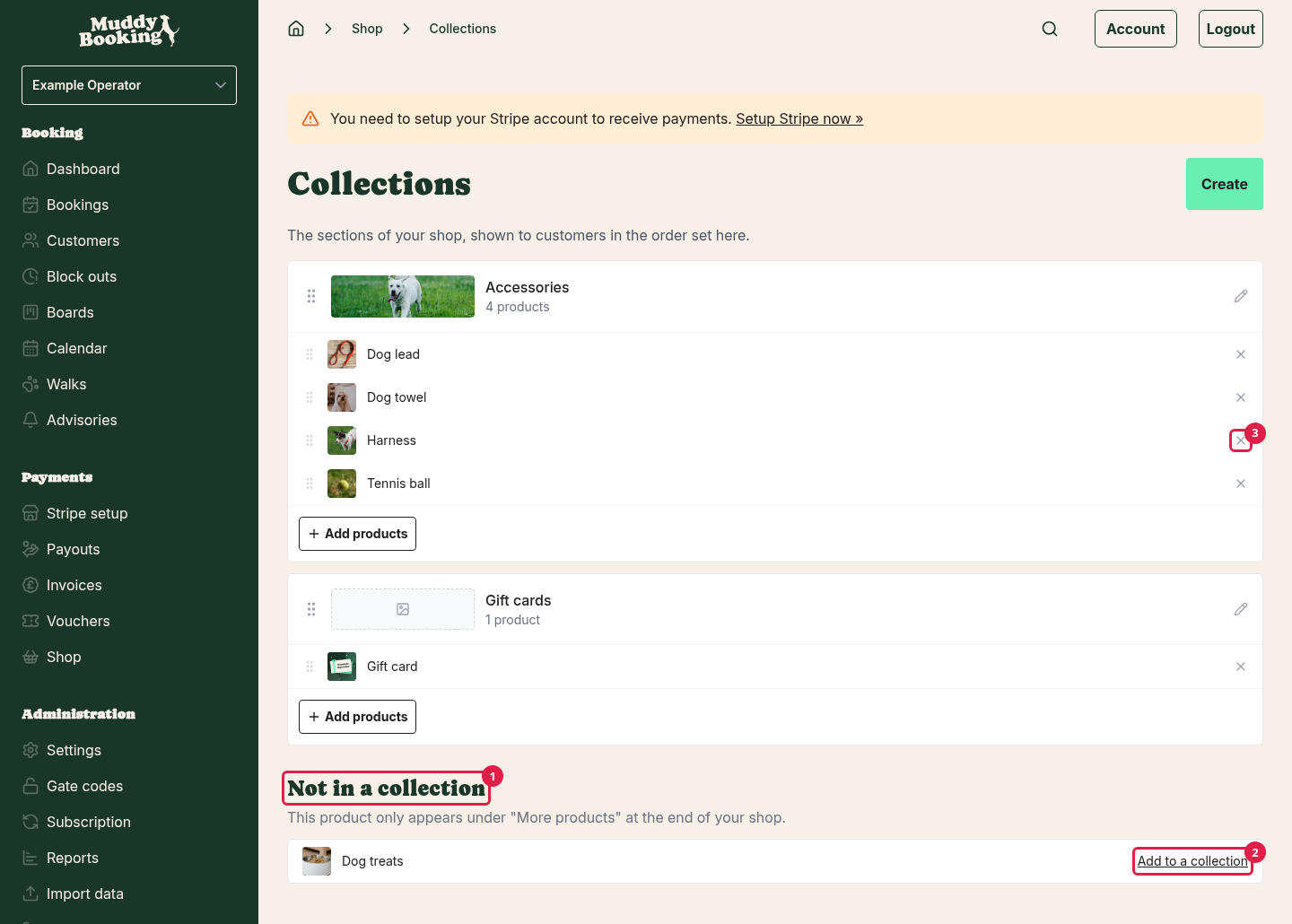
You can also add products from the other direction. Products that aren't in any collection are listed below your collections, under Not in a collection (1). Until one of your collections has a product in it, this list is headed Your products instead. Once you have a collection, click Add to a collection (2) next to any of them. Tick the collections you want the product in, then click Save.
To take a product out of a collection, click the X (3) next to it on the collection's card. This only removes it from the collection. The product itself isn't deleted.
Changing the order
The order on the Collections page is the order customers see.
- To move a collection, drag it by its handle (1) to a new position.
- To move a product within a collection, drag it by its handle (2) to a new position on the card.
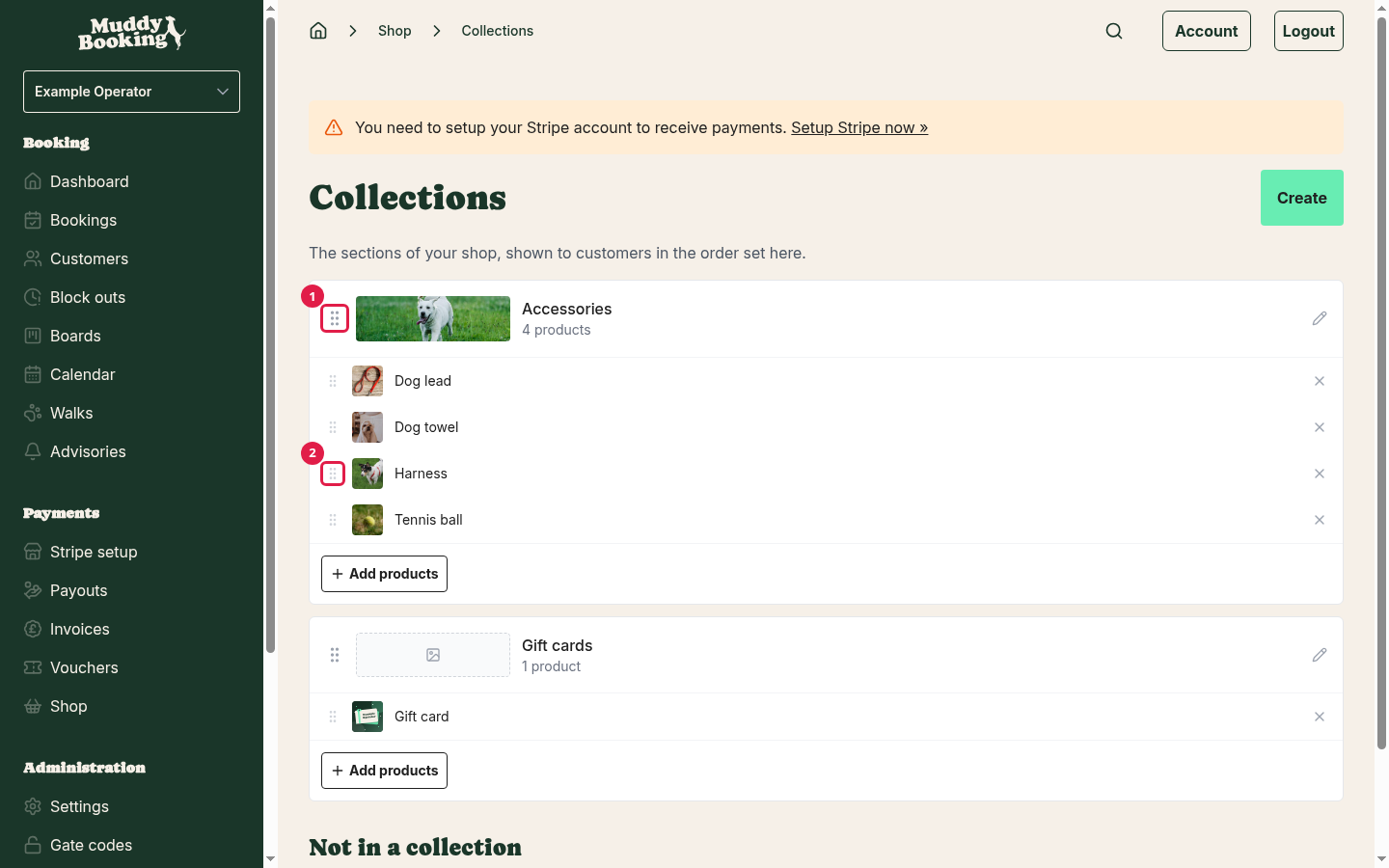
Changes save straight away. If your shop is open, customers see the new order immediately.
How your shop front looks
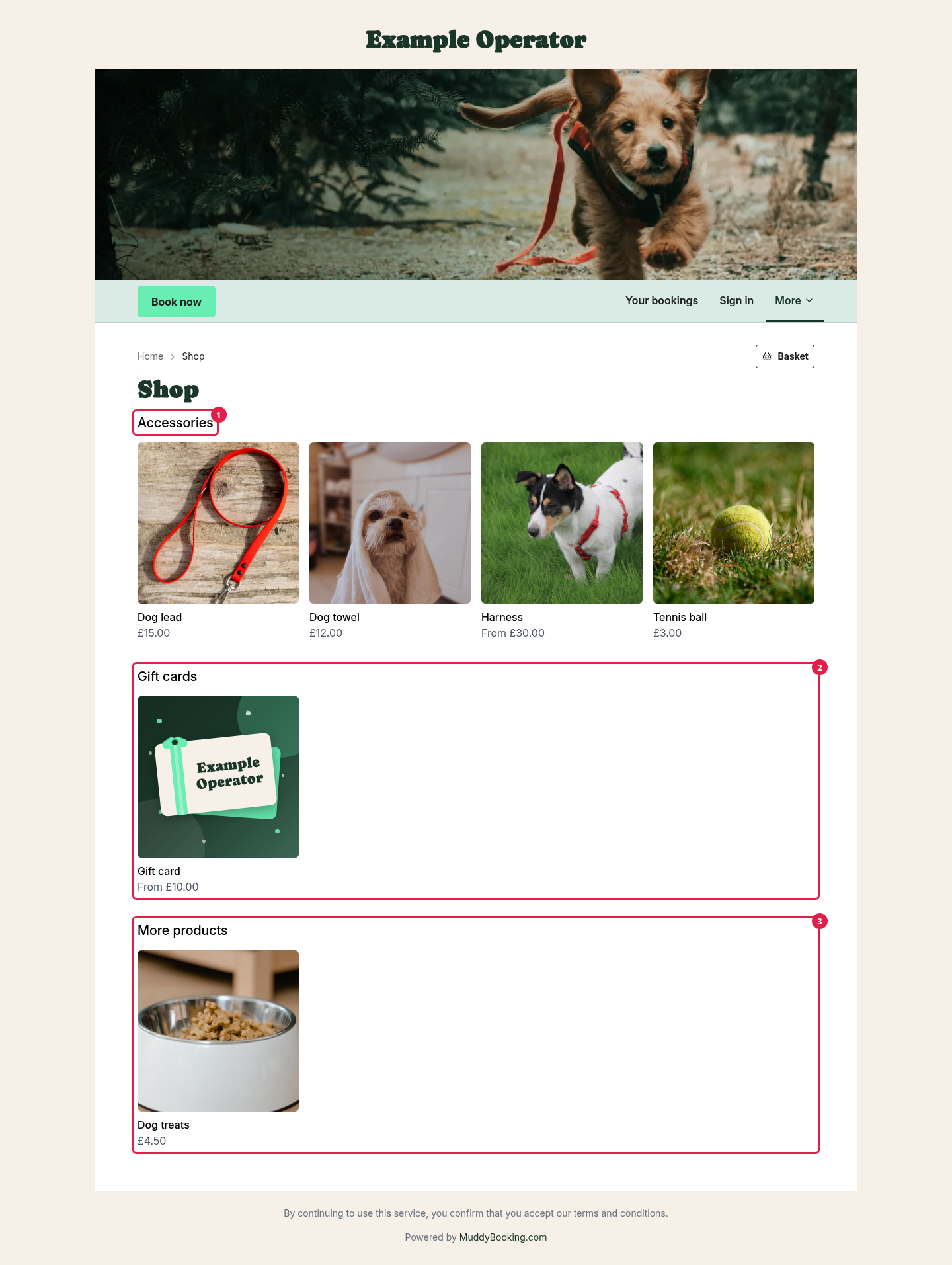
- Each collection appears as a section (1) (2), in the order you set.
- Each section shows its first four products, with a View all link if it has more than four.
- A collection's cover image doesn't show on the shop front. It shows at the top of the collection's own page, which the View all link opens.
- Collections with no published products are hidden.
- Products that aren't in any collection appear at the end, under More products (3).
- If you have no collections, or they're all empty, your shop front shows your first four products, with a View all link to the rest.
It's worth putting every product in at least one collection. Products left under More products are easy for customers to miss.
Renaming a collection or changing its image
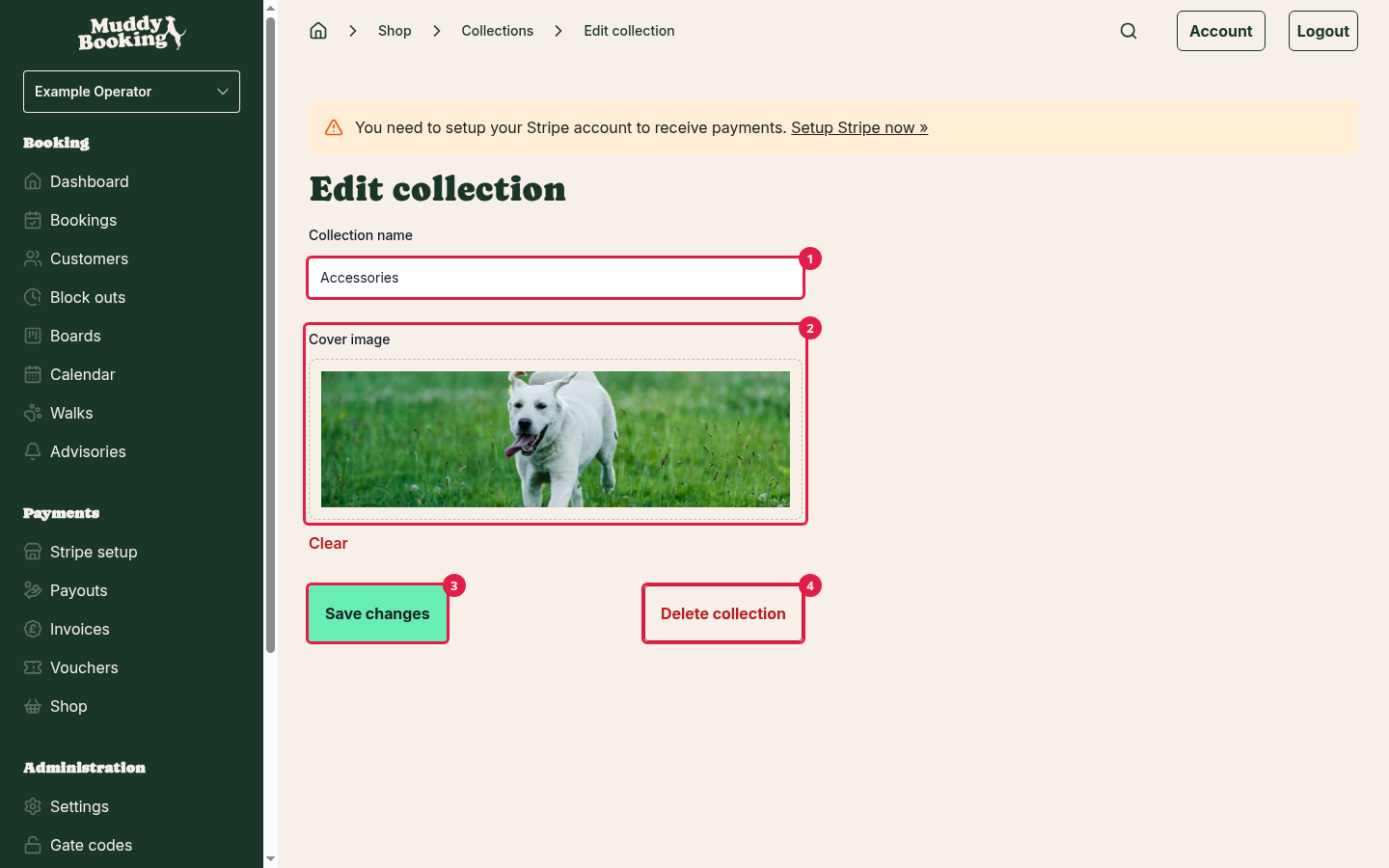
- Click the pencil icon on the collection's card.
- Change the Collection name (1) or Cover image (2).
- Click Save changes (3).
Deleting a collection
- Click the pencil icon on the collection's card.
- Click Delete collection (4).
- Click Delete it to confirm.
Deleting a collection doesn't delete the products in it. They stay in your shop. If they aren't in any other collection, they move to More products. If that leaves no collection with published products, your shop front shows your products in one list, without a More products heading.
Warning: deleting a collection is permanent and can't be undone. Any discount that picks this collection, under Chosen items only or in the rule Order contains a product from one of these collections, stops counting it. If it was the only thing the discount picked, the discount stops taking money off. Check your discounts before you delete a collection.