Accessing the send voucher feature
Once you've created a voucher, you can email it to a customer.
- Go to Vouchers in the left-hand menu

- Click the voucher you want to send
- Click Send voucher
Filling out the send voucher form
A form appears at the top of the page:
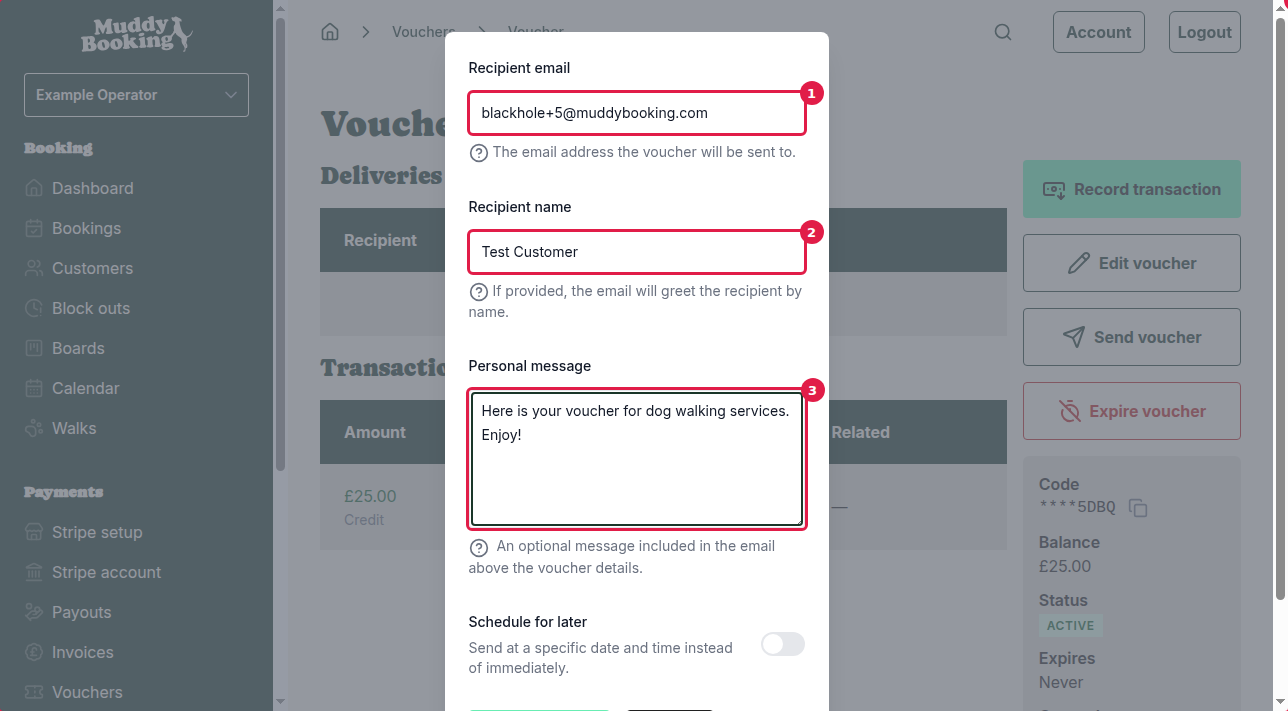
- Recipient email (1) (required): where to send the voucher
- Recipient name (2) (optional): used in the email's greeting
- Personal message (3) (optional): shown above the voucher details in the email
- Schedule for later (optional): send it at a set date and time instead of now
Sending the voucher
- Enter the customer's email in Recipient email
- Add their name or a message if you like
- Click Send voucher (4)
After sending
You'll be back on the voucher's page.
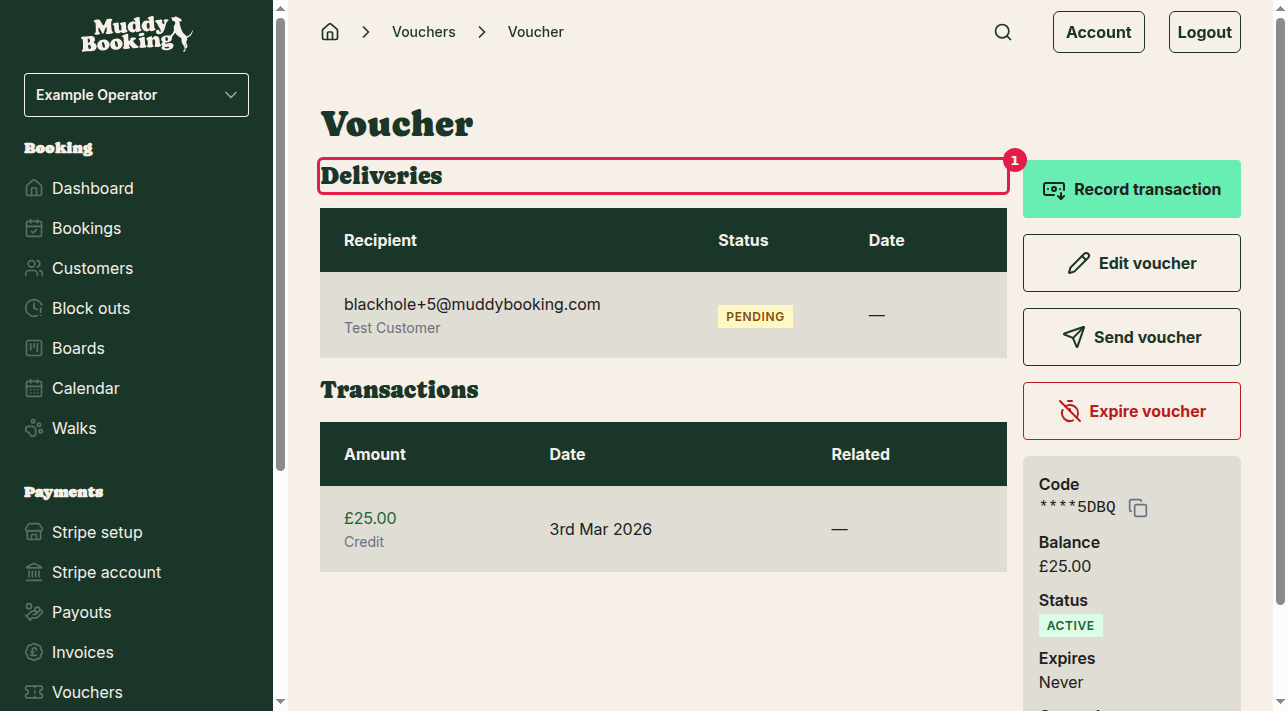
The Deliveries section (1) lists the email with:
- The recipient's email and name
- Its status, which starts as PENDING and changes to SENT
- When it was sent
Important notes
- You can send the same voucher to several people. Each gets their own email, but they all share the same code and balance
- Anyone with the code can use the voucher while it's ACTIVE
- Every send is listed in the voucher's Deliveries section