What are block outs?
A block out stops customers booking during a time you're not available, such as a holiday, a personal appointment or a morning set aside for cutting the grass. For your regular weekly hours, see Setting up opening times.
How to access block outs
You can get to block outs in two ways:
From the main menu
- Click Block outs in the left-hand menu
Through Settings
- Click Settings in the left-hand menu
- Under Bookings, click Block outs (1)
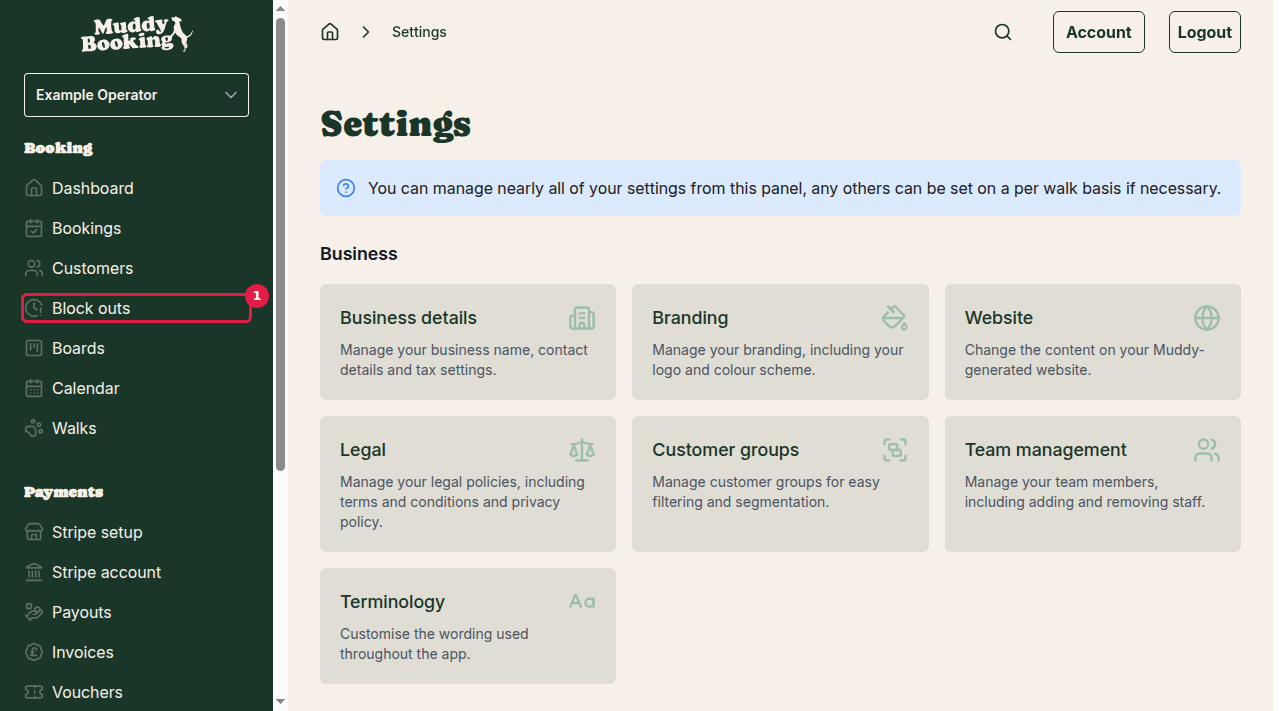
Both take you to the same page.
Adding a new block out
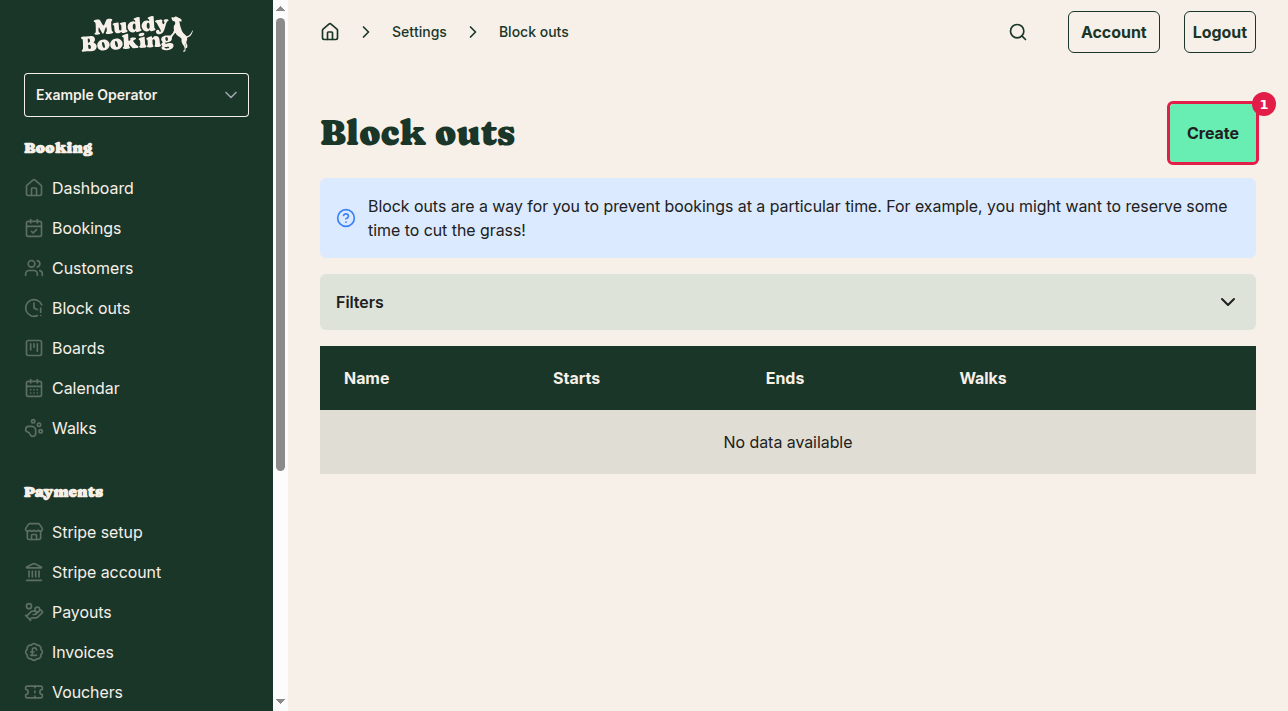
Step 1: Start creating a block out
Click Create (1).
Step 2: Fill out the block out details
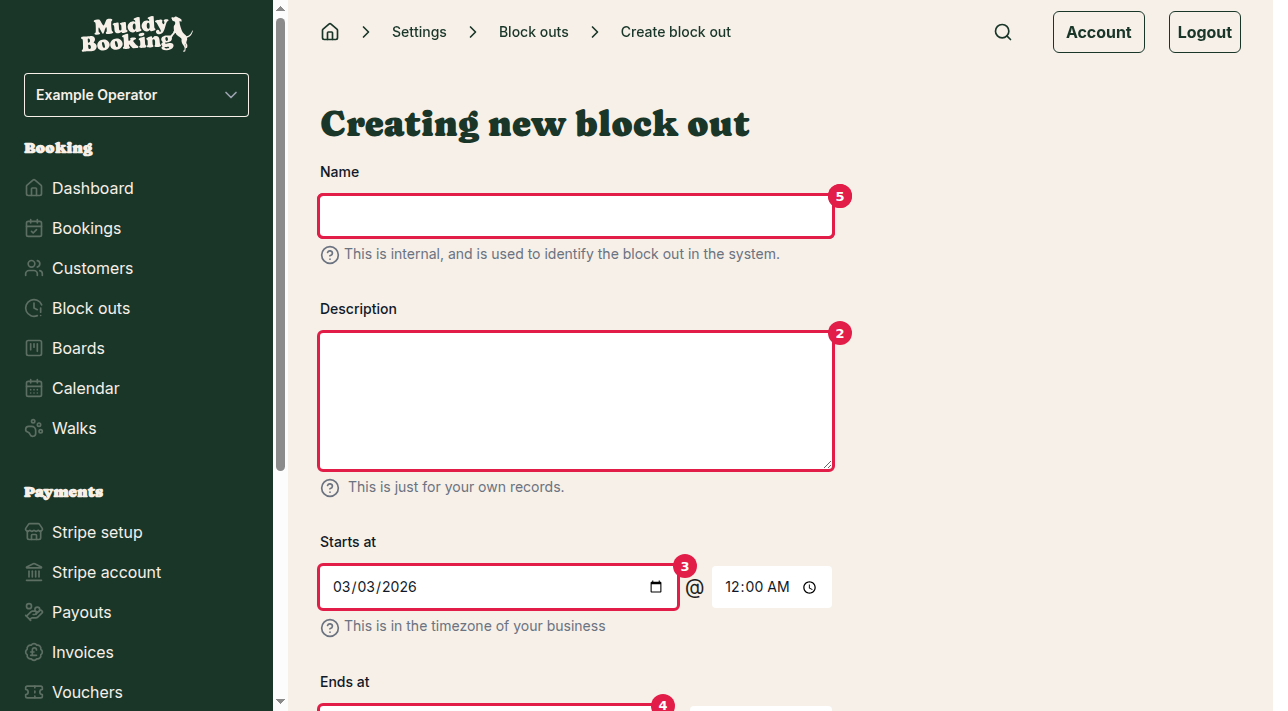
Name (1) (Required) A name to help you recognise the block out, such as "Grass cutting", "Holiday" or "Equipment maintenance". Customers don't see it.
Description (2) (Optional) Any notes for your own records, such as why you're blocking the time.
Starts at (3) (Required) The date and time the block out begins, in your business timezone.
Ends at (4) (Required) The date and time the block out ends. This must be after the start.
Walks (5) (Required) The walks the block out applies to. You can pick one or several. Only the walks you pick are closed during the block out.
Step 3: Check for conflicts
Muddy checks whether the block out overlaps any existing bookings and shows you the result.
If there are conflicts, you can:
- Change the block out times
- Contact the customers to rebook
- Cancel the conflicting bookings
Step 4: Save your block out
Click Create block out (6).
What happens after creating a block out
- Customers can't book the blocked time online
- The block out appears in your block outs list
- You can edit or delete it later
Tips
- Add block outs as soon as you know you'll be away, before customers book those times
- Give each block out a clear name so the list is easy to scan
- Leave a little time either side of an appointment in case it runs over